How To Sign Up For KuCoin: Account Creation, KYC And Security Setup

How to sign up for KuCoin takes a few minutes: choose an email or phone number, confirm a code, set a password, and then finish identity verification, which new users must complete before they can use KuCoin's products. After that, the steps that matter most are the authenticator app and the trading password. In this article, Backcom.io walks through KuCoin registration in order, from the first form to KYC and security setup, using KuCoin's own help pages checked on 14 November 2026.
You need an email address or phone number you can reach, a valid government ID and a phone with a camera. You must also be at least 18 years old. Rules and available services differ by country of residence, so read the notices KuCoin shows for your country before you continue.
1. How To Sign Up For KuCoin Step By Step?
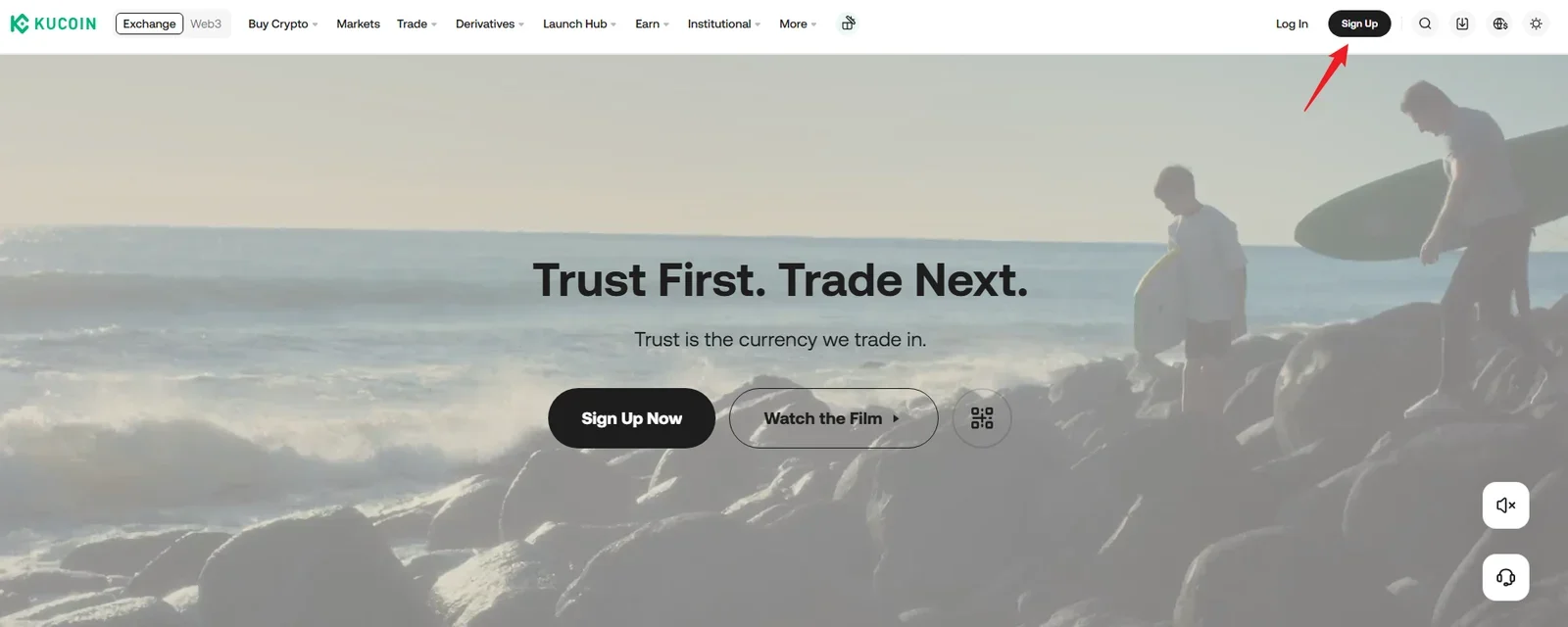
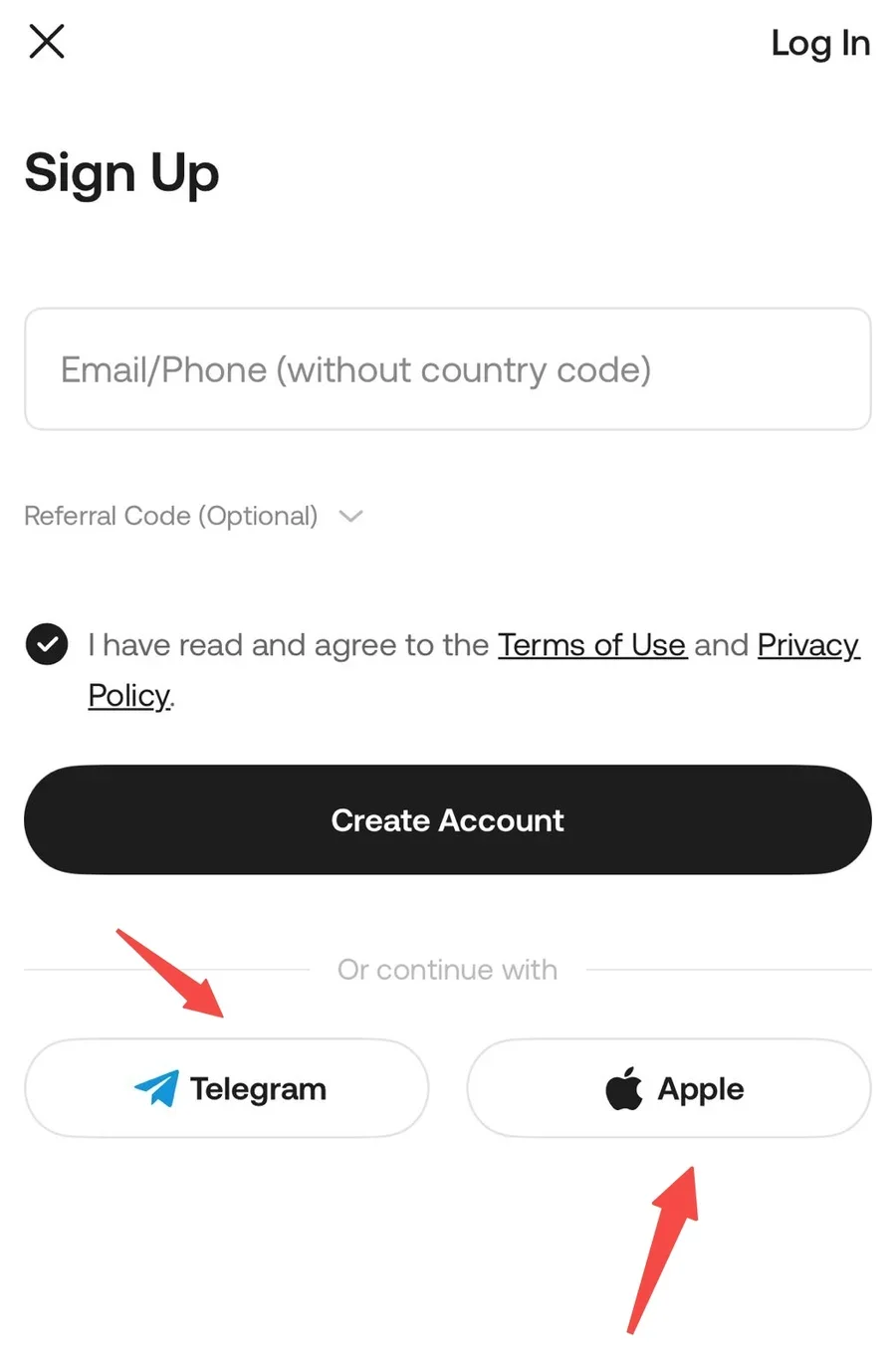
To create a KuCoin account, you register with an email address or a phone number, enter the code you receive and set a login password. According to KuCoin's sign-up and login guide, the flow is the same on the website and in the app, except that Apple ID and Telegram Bot sign-up are available only in the app.
Create KuCoin Account On The Web
On the web, the steps are:
- Open the official KuCoin site and select Sign Up at the top right.
- Enter your email address or phone number and, if you have one, a referral code.
- Accept the Terms of Use and select Create Account and Claim Reward.
- Enter the verification code KuCoin sends you.
- Set a login password and confirm.
An email address or phone number that is already linked to an account cannot be used again. KuCoin's page gives no length or character rules for the password, but it advises against simple passwords and against reusing one from your email or other accounts. Use a long, unique password kept in a password manager.
Plan your referral choice at step 2. The field is optional, but it is the moment to enter a code if you want the account connected to a rebate programme. Section 5 explains what that code does, and section 6 covers accounts that already exist.
KuCoin Registration Problems To Avoid
A few details prevent the most common stalls:
- Type the address yourself. Phishing sites copy the KuCoin login page, so use a bookmark rather than a link from a message.
- Watch the lockout. KuCoin states that entering wrong verification details more than five times locks your account for two hours.
- Fix a referral link that does not fill in. If an invite link does not insert the code, it may have expired; KuCoin says to enter the last six digits of the referral code by hand.
2. How Does KuCoin KYC Verification Work?
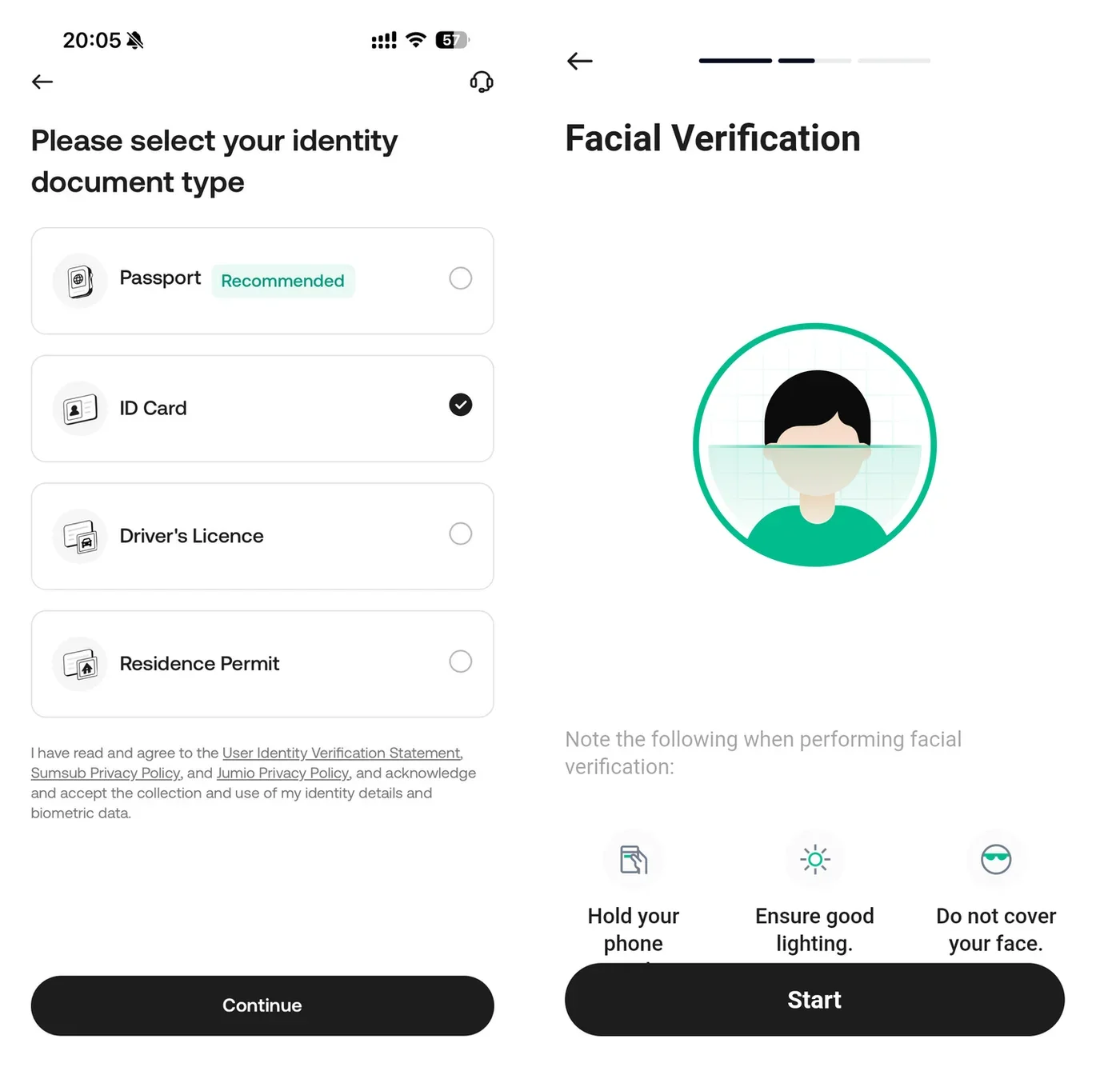
KuCoin KYC verification is the identity check that new users must pass before they can use KuCoin's products and services. KuCoin's individual verification guide says this has applied to new users since 31 August 2023. Accounts registered earlier without full verification are limited: they can sell crypto, close futures and margin positions and redeem from KuCoin Earn, but cannot deposit.
The web steps, from KuCoin's help page, are:
- Open Account Center, go to Identity Verification and select Individual Verification.
- Select the issuing country or region, which must match your document.
- Choose your ID type and upload photos of the front and back.
- Complete face verification by following the prompts on screen.
- Wait for the result. A pop-up asks you to confirm your first name, last name and ID number, and KuCoin then submits the application for review.
Which Documents Does KuCoin Accept?
KuCoin accepts an ID card, a driving licence, a passport or a residence permit. The document needs to meet these conditions:
- It shows your full name, exact date of birth, face image and issuing country.
- It is an original that is clear and complete. Printed, photocopied or scanned copies are not accepted.
- It is not expired.
- It is the only account it is used for, because one document can verify only one KuCoin account.
Photos must be JPG or PNG, well lit, not blurred and show the whole document held straight. For the face check, allow camera access, keep your face fully inside the frame and use good lighting.
KuCoin gives no fixed review time for this flow. It says results are sent by email, so wait for them. If a submission fails, the reason appears under Identity Verification and you can use Try Again or Re-Verify. If it keeps failing, KuCoin suggests another browser, device or network, and a screen recording sent to support. Accepted IDs and extra checks depend on your country, so treat the screens in your own account as the final guide.
3. How Does KuCoin 2FA Setup Work With An Authenticator App?
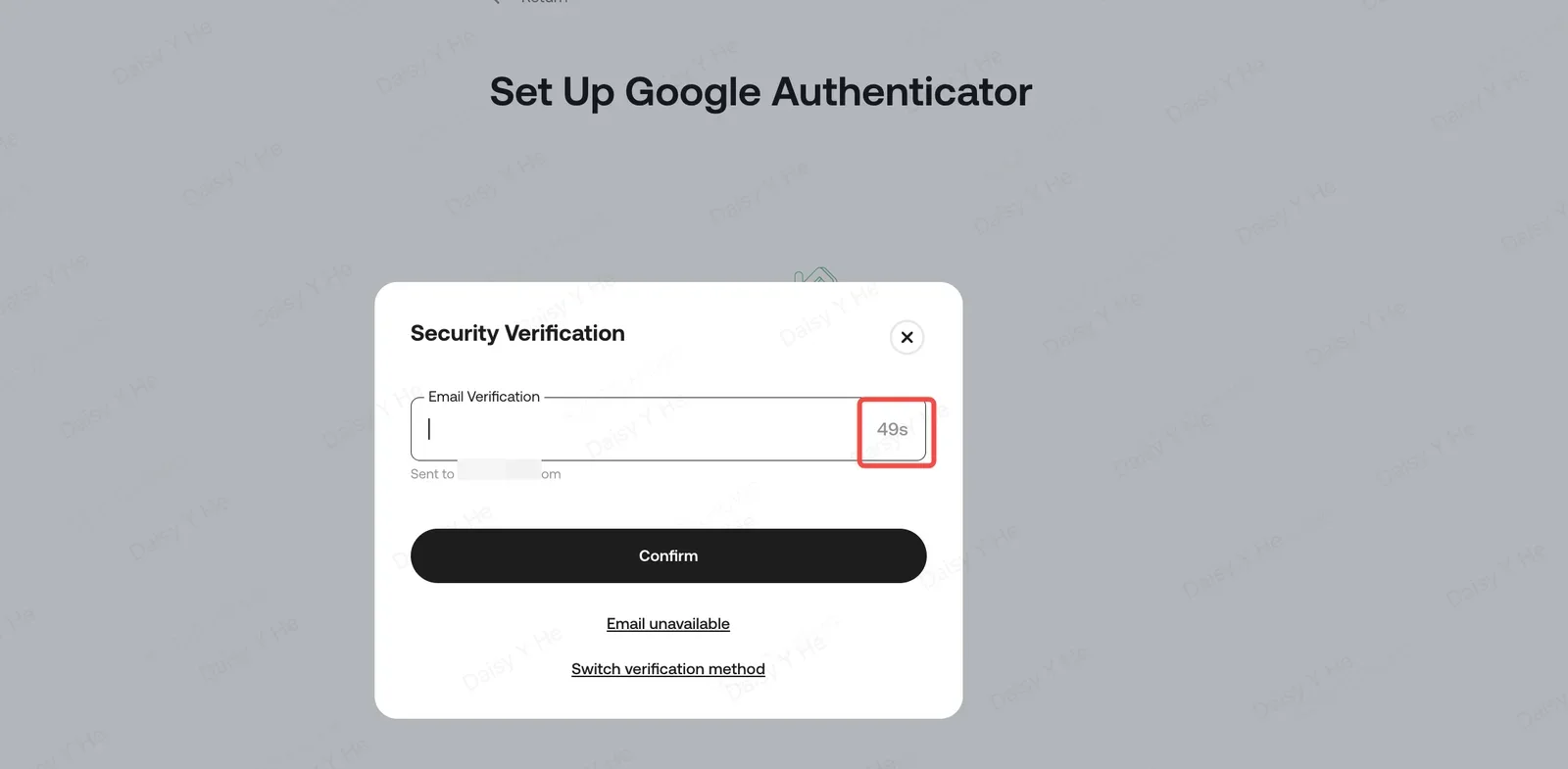
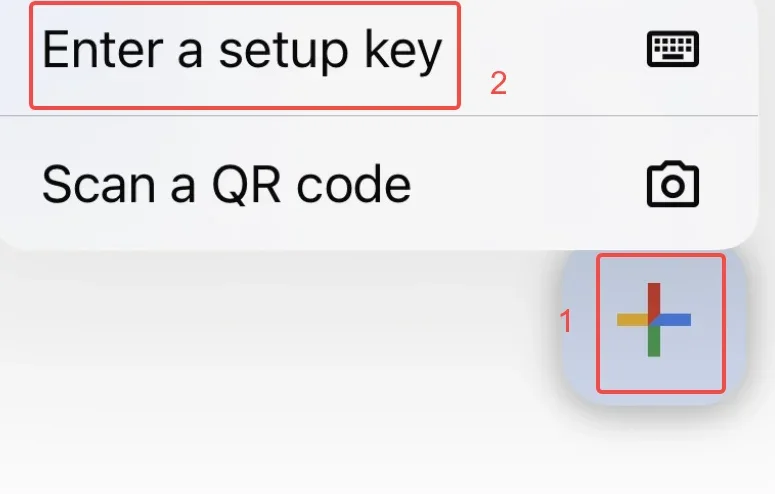
KuCoin 2FA setup links an authenticator app that produces a six-digit code, which KuCoin asks for at login, trading and withdrawal. It is the main protection beyond your password. KuCoin's Google 2FA guide describes the flow:
- Log in, open your profile at the top right and go to Account Security, then Google Verification.
- Select Configure (previously called Bind) and verify with your passkey, email or text message code.
- Scan the QR code with your authenticator app, or type the security key in by hand.
- Enter the six-digit code from the app to finish.
The app generates a new code every 30 seconds, so your phone clock must stay in sync. KuCoin warns that five incorrect codes in a row lock Google 2FA for two hours. It also says withdrawals are disabled for 24 hours after you update 2FA settings.
Save the security key or QR code offline. It lets you relink the authenticator on a new phone, and every relink issues a new key, so keep the latest one. If you lose both the phone and the key, KuCoin's route is the login page: choose Forgot password, then Google Authenticator unavailable, complete verification and submit a reset request. The page gives no processing time. Menu names vary a little by region and app version, so follow the labels you see.
4. What Is The KuCoin Trading Password And Which Other Settings Matter?
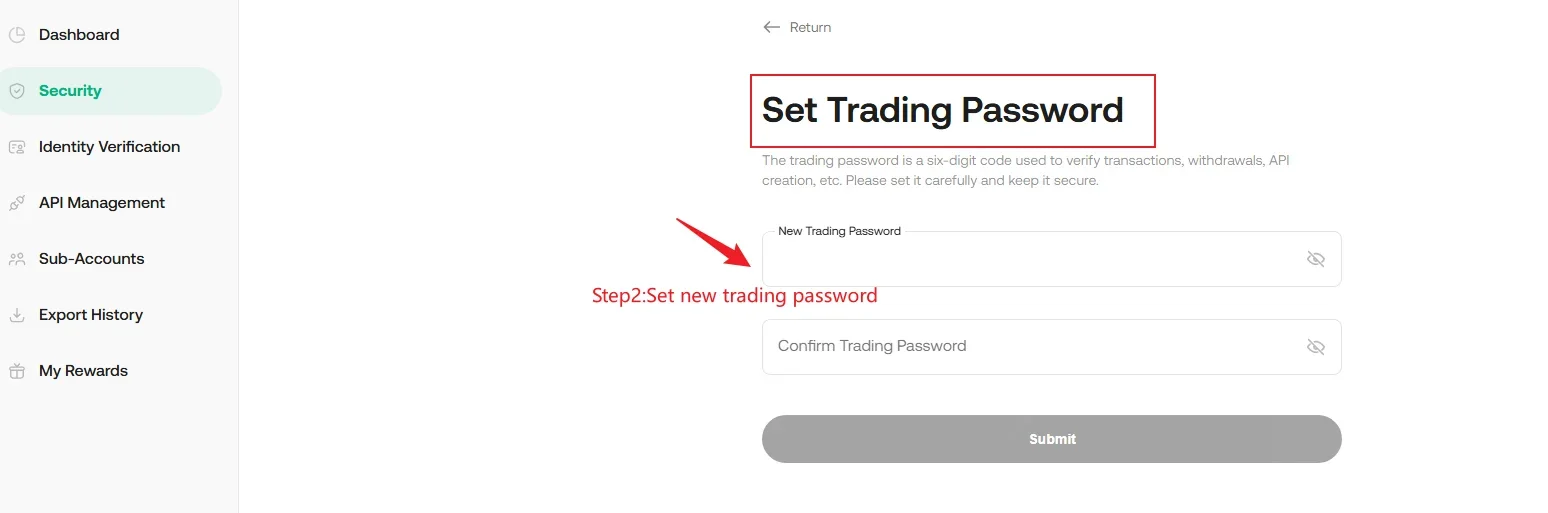
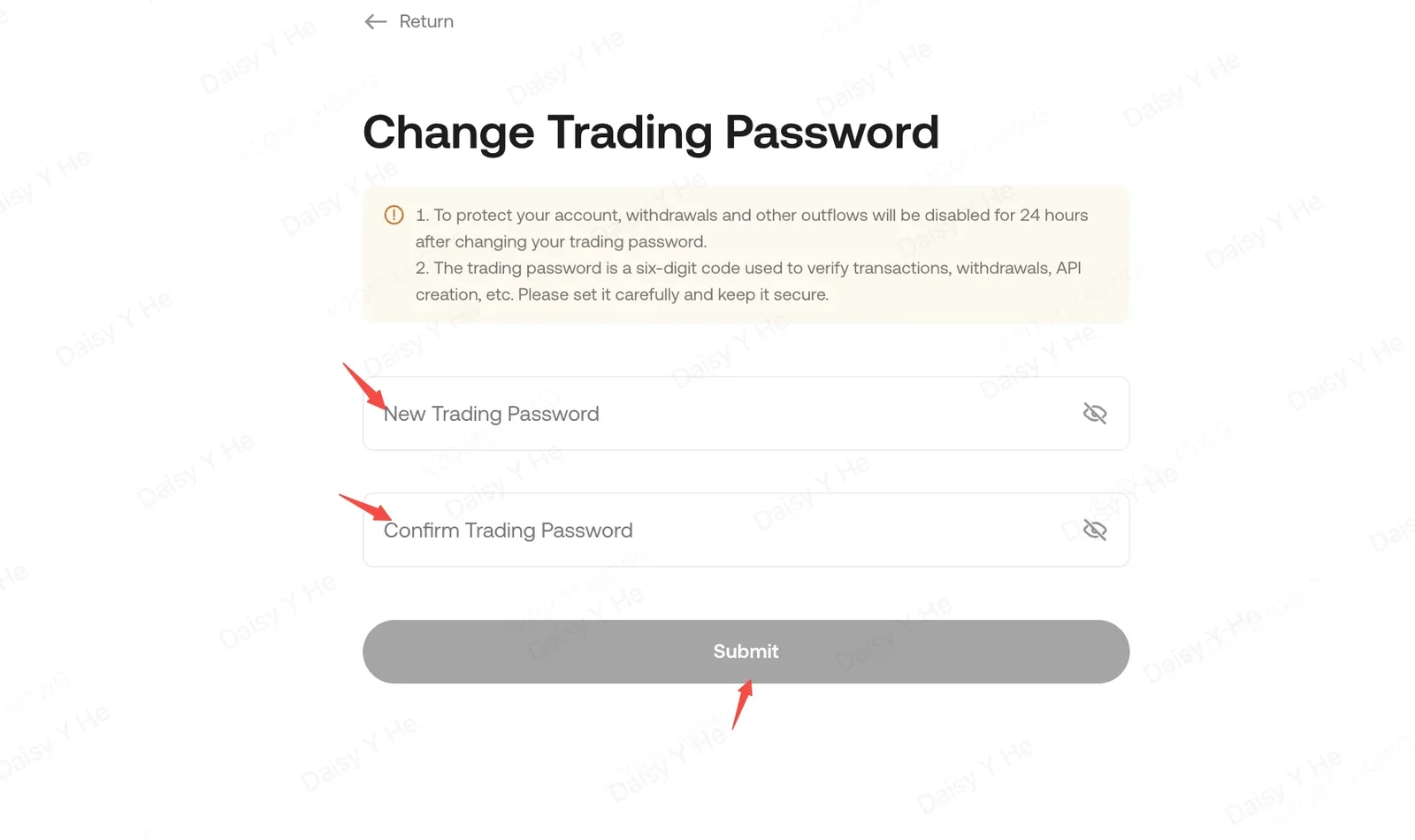
The KuCoin trading password is a separate six-digit PIN that verifies trades, withdrawals and API-related actions. KuCoin's trading password guide says it must be six digits with no letters or symbols, and that you reset it through two-factor authentication or, if that is unavailable, a manual reset under Identity Verification, usually processed in one to three business days. KuCoin support never asks for it.
To set it up, open Security Settings, select Configure beside Trading Password, pass the security check with your passkey or a 2FA, text or email code, and submit. One rule is easy to miss: after you change or reset it, withdrawals, selling crypto through P2P and sending Red Packets are disabled for 24 hours. Avoid changing it just before a payment you need to make.
Three habits finish the setup:
- Never share a code, including with someone who claims to be KuCoin support.
- Secure your email too, since password recovery and codes arrive there.
- Use only official KuCoin pages. KuCoin runs an Official Verification Center for checking contacts and announcements.
For a view of KuCoin's regulation and security record, see our KuCoin legitimacy review. The same habits apply on any exchange, as in our Binance account security checklist.
5. How Do KuCoin Rebates Work On A New Account?
KuCoin Rebates return part of the trading fees you pay on KuCoin, and for a new account they depend on how you register. The programme page on this site lists 60% of spot and futures fees, credited daily by KuCoin, with no minimum volume or time limit (page checked 14 November 2026).
For a brand-new account, follow this order:
- Register through the programme link: create your KuCoin account here or type the code VIPBACKCOM in the optional referral field at step 2 of section 1. The page suggests an Incognito tab so the link is not lost.
- Complete KYC as described in section 2.
- Link your account UID in the Backcom App so your trades are tracked. Your UID is shown in your KuCoin profile.
- Trade as usual. The page says rebates are credited automatically.
Each UID, including every sub-account you trade from, is linked separately. A rebate is a share of a fee, not of profit, and it applies to losing trades as well as winning ones. It lowers your cost and does not change the risk of any position. Our maker vs taker fees guide shows how fees are charged before any rebate, and the rebate comparison explains what to check in any programme. You can also read the KuCoin programme page.
Backcom.io is an independent introducing broker (IB/affiliate) of the exchanges it lists, including KuCoin; rebates are paid from the commission the exchange pays Backcom.io. See the risk disclaimer for details. A rebate is not a reason to open an account, deposit funds or trade more than you planned.
6. What If You Already Have A KuCoin Account?
An existing KuCoin account cannot simply be added to a programme afterwards, and a second account is not an easy workaround. The programme page says to register a new KuCoin account with a new email address through the link, complete KYC and link the new UID. KuCoin, however, allows one document to verify only one account, so a document already used on your old account may be rejected.
Ask the support team before you open a second account. The programme page lists email, WhatsApp, Telegram and a support page, and says individual cases are reviewed there. If KYC on the new account is rejected, KuCoin's own support is the place to ask.
Frequently Asked Questions (FAQ) About Signing Up For KuCoin
Do I Need A Referral Code To Sign Up For KuCoin?
No. The referral field is optional. If you want the account linked to a rebate programme, enter the code or use the programme link before you submit the form.
Is KYC Required After KuCoin Registration?
Yes for new users. KuCoin says new users have had to complete identity verification since 31 August 2023 to use its products and services. Plan to do it right after you sign up.
Can I Register With A Phone Number Instead Of Email?
Yes. KuCoin lets you register with an email address or a phone number on web or app. Apple ID and Telegram Bot sign-up exist only in the app.
What Happens If My KuCoin KYC Is Rejected?
The reason is shown under Identity Verification, and you can use Try Again or Re-Verify. Check the document is original, unexpired and sharp, then contact KuCoin support if it keeps failing.
What If I Lose My Authenticator App?
You can relink it yourself with the saved security key. Without the key, use Forgot password, then Google Authenticator unavailable, on the login page and submit a reset request. Withdrawals stay disabled for 24 hours after a 2FA change.
Conclusion: What Should You Do After Signing Up For KuCoin?
Registering on KuCoin is quick; the steps that protect you come afterwards. Use an email or phone you control, decide on a referral link before you submit the form, finish identity verification with an original, unexpired document, then set up an authenticator app and a trading password. Keep the setup key offline and remember the 24-hour withdrawal pause after a trading password change. Learn the interface before you decide whether to deposit anything.
Disclaimer: This content is compiled by Backcom.io for information only and is not investment advice. Crypto assets are volatile and leveraged products can lose your whole margin. Account steps, fees and rebate terms can change, and rules differ by country of residence. Check the current terms and your local regulations before you register or trade.
Was this article helpful?
Join The Backcom.io Community
Get the latest on trading rebates, trading tips, and broker deals — and connect with thousands of traders worldwide.

Backcom App
Track Your Rebates Every Day
Every rebate is visible by broker and by day. Manage your wallet and withdrawals in one place.
Open Backcom App