MT5 No Connection Or Invalid Account? 6 Checks To Fix MT5 Not Connecting To Your Broker Server


You are watching a price level when the MT5 status bar turns red and reads "No connection". Quotes freeze, and the open trade cannot be edited. It is easy to assume the broker is down or the account has a problem, yet in many cases of MT5 no connection the cause sits on the computer, the network or the server name you picked.
This guide covers MT5 installed on a desktop or laptop and how to fix the MT5 not connecting error in order, from the easiest checks to the harder ones. In this article, Backcom.io will help you:
- Tell No connection apart from Invalid account so you fix the right thing.
- Work through six checks: network, firewall, server name, proxy or VPN, update or reinstall, and finally broker support.
- Know what to send to support so the case is handled quickly.
1. MT5 No Connection Vs MT5 Invalid Account: What Is The Difference?
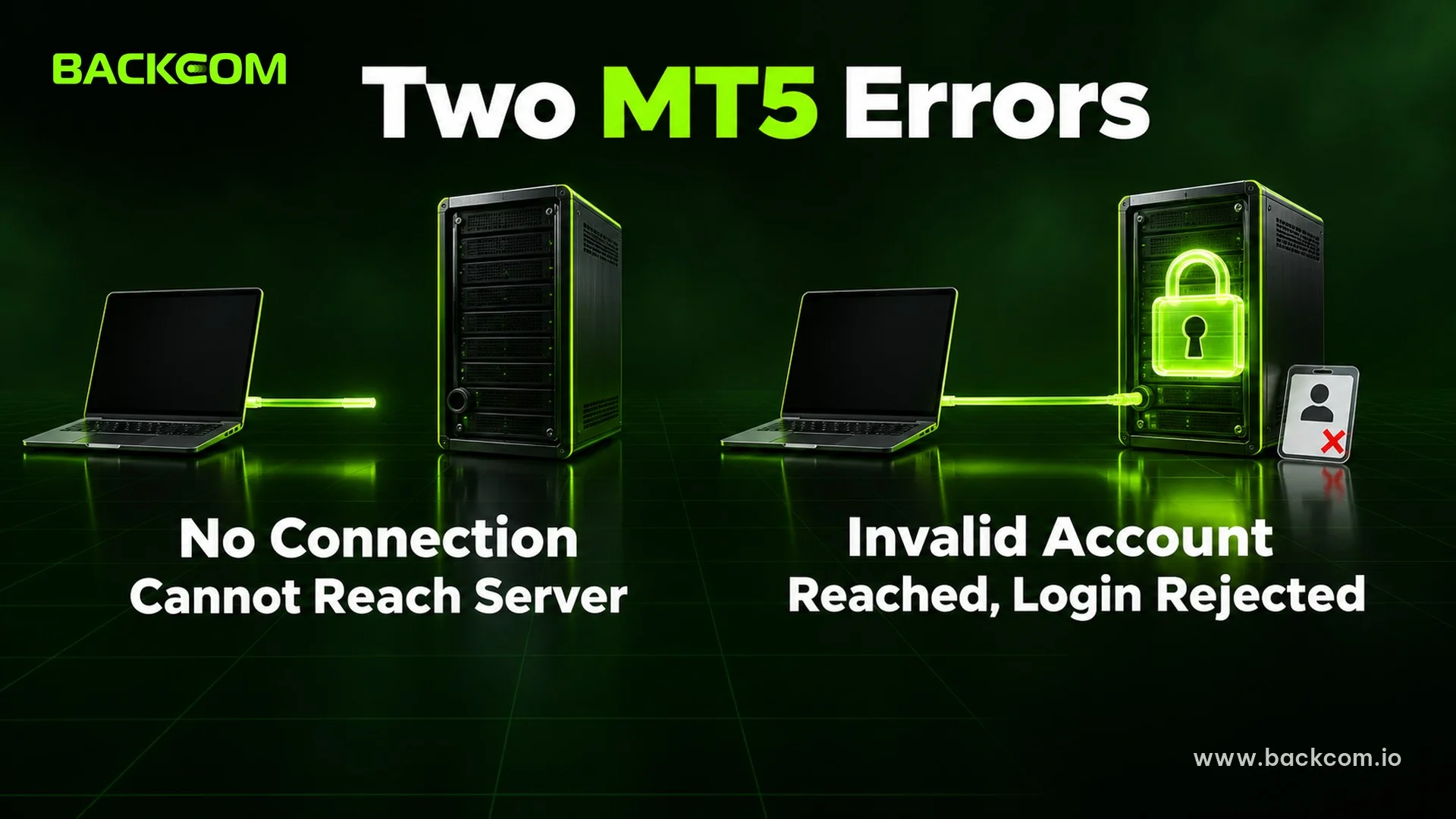
MT5 no connection means the terminal has not reached the trade server at all. MT5 invalid account means the terminal did reach the server, but the broker rejected the login details. The two messages look alike, but the causes and fixes are completely different.
The Journal tab in the Toolbox window holds MT5's log, and the status bar at the bottom right shows the server connection state. MetaQuotes describes both on its MT5 interface help page.
An Invalid account message means the server received the request but refused the login, while a No connection status means MT5 has not reached the server. MetaQuotes' trading account management page also describes Invalid account as an error returned by the trade server, for example when logging in to an expired demo account.
You can open the log in two steps:
- Open the Toolbox window: go to the View menu and choose Toolbox if the bottom panel is hidden.
- Select the Journal tab: read the latest few lines, right after MT5 shows the error.
The table below groups the common symptoms so you know which section to read first.
| Symptom | Usually caused by | See section |
|---|---|---|
| Status bar shows "No connection" on every network tried | Network, firewall or antivirus blocking MT5 | 2, 3 |
| "No connection" on one server only | Wrong server name picked | 4 |
| Fails on one network, works on another | That network blocks the connection or uses a proxy | 2, 5 |
| Connected, but the Journal says Invalid account | Wrong login, password or server | 7 |
This table is a general guide, as at 18 November 2026. Each broker and each network may show different results, so compare it with the real message in the Journal tab.
2. Is Your Computer Reaching The Internet At All?
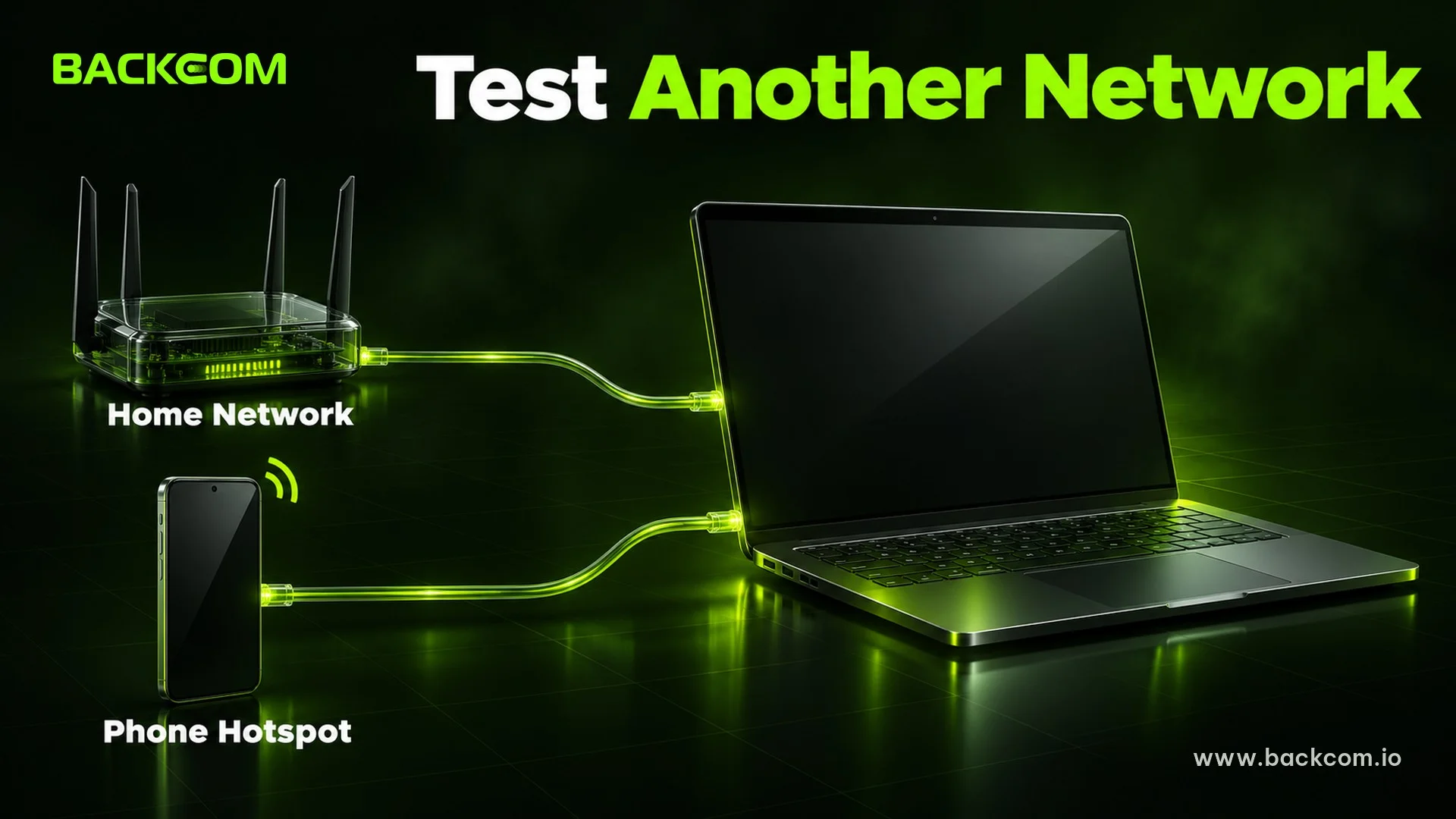
Checking the network is the first and cheapest step, and it should come before anything else. If MT5 reports no connection and your browser is also slow or dropping, the problem may not be the platform.
Try these in order:
- Open any web page: if it loads slowly or not at all, fix the line first.
- Switch to another network: use a Wi-Fi hotspot from your phone for a few minutes.
- Compare the results: if MT5 connects on the phone hotspot, the problem is your usual network, not the account or the broker.
- Restart the modem or router: especially if everything at home is flaky.
Office networks, cafes and dormitories often run their own firewall, so the same computer can work at home and fail somewhere else.
If the broker's site itself is blocked by your internet provider, read the guide on accessing broker sites with 1.1.1.1 rather than installing unknown tools of unclear origin.
3. Is Windows Firewall Or Antivirus Blocking MT5?
A firewall blocking MT5 is worth ruling out right after a fresh install or a Windows update. The firewall may treat MT5 as an unknown program and cut its outgoing connection, even though your browser works normally.
According to Microsoft, you allow an app through Windows Firewall like this:
- Open Windows Security: go to Firewall & network protection.
- Choose Allow an app through firewall: then choose Change settings, which may ask for an administrator password.
- Find MT5 in the list: tick its box, or choose Allow another app and enter the path to the terminal64.exe file in the MT5 installation folder.
- Click OK and reopen MT5: close it fully, then open it again and check the connection.
Microsoft also warns to allow only apps you recognise and really need. See Microsoft's page on the risks of allowing apps through Windows Firewall.
Third-party antivirus works separately from Windows Firewall, so you also need to add the MT5 folder to that program's exceptions. Do not switch the firewall off permanently just to make MT5 run, because that opens the whole computer to every other connection.
4. MT5 Wrong Server: Does The Server Name Match Your Broker's Email?
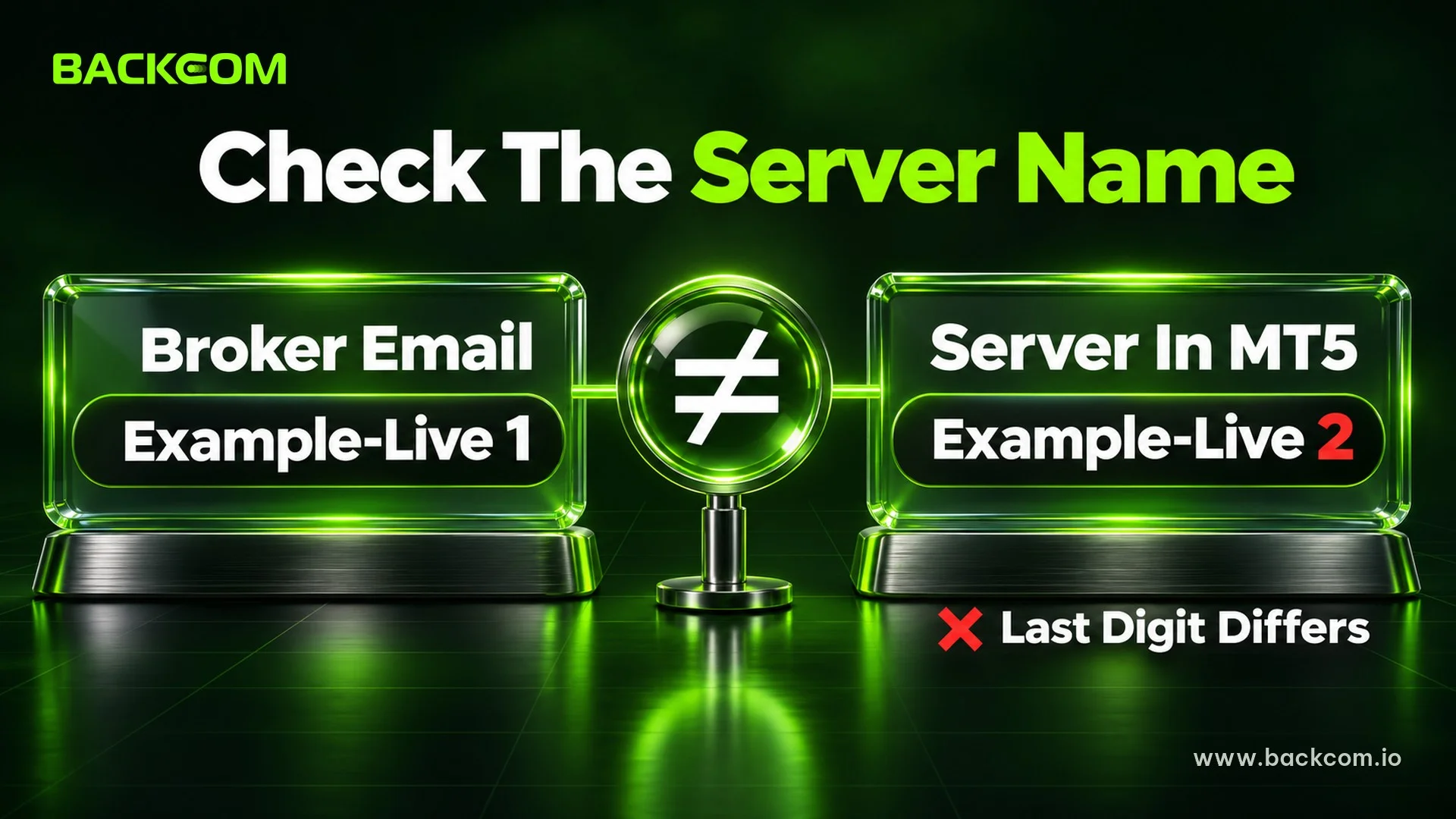
An MT5 wrong server is a small mistake that is enough to break the connection. Choosing the right server means the server name in MT5 matches, character for character, the one in the broker's confirmation email, because a broker can run several servers for live accounts, demo accounts and each account type, and the names may differ only in the final number.
Compare them in this order:
- Open the login dialog: according to MetaQuotes, go to the File menu and choose Login to Trade Account.
- Compare the server name with the broker's email: copy every character, including the digits at the end.
- Type it by hand if needed: MetaQuotes lets you enter the server as a name or address followed by a port, separated by a colon.
- Retry with the right account type: a demo account cannot log in to a live server, and the other way round.
This is covered on MetaQuotes' help page about logging in to a trade account. If you trade with Exness, the broker's own login guide can also help; see how to log in to Exness MT4 and MT5.
5. Are Proxy Or VPN Settings Breaking The MT5 Connection?
A proxy or VPN changes the path your data takes, so it can stop MT5 from reaching the server if it is set up wrongly or if that network blocks it. That is why the same computer sometimes fails behind a VPN and works once it is switched off.
MetaQuotes describes the Server tab under Tools, Options, with an "Enable proxy server" option for using a proxy when connecting. The page also says not to change the parameters in that window unless there is a special need. See MetaQuotes' platform settings page.
Check the other way round, by looking for anything switched on that you do not need:
- The proxy option in MT5: if Enable proxy server is ticked but you do not use a proxy, untick it and try again.
- A VPN on the computer: turn it off and reconnect to see whether the error disappears.
- Windows proxy settings: on a work or shared computer, ask the network administrator.
For a proxy fault with no clear cause, MetaQuotes advises contacting your system administrator or internet provider. Do not use unknown proxy services to reach a broker either, because the risk of leaking login details outweighs any benefit.
6. What If MT5 Is Outdated, The Install Is Damaged Or The Computer Hangs?
Updating or reinstalling MT5 is the last self-check, because it takes the most effort. Do it only after the network, firewall and server have been ruled out.
Try these from light to heavy:
- Close MT5 fully and reopen it: check the taskbar to make sure no old process is still running.
- Restart the computer: this clears many connection hangs caused by another program holding a port.
- Update MT5: a very old version may not work with a server the broker has just upgraded.
- Download the installer again from the broker: use the download link on the broker's official site, not an intermediary site.
- Install into a new folder: keep the old copy for comparison, then log in again with the right details.
When reinstalling, have your account number, trading password and server name ready, because a reinstall cannot recover login details you have forgotten.
Traders who run EAs all day should consider hosting MT5 on a VPS instead of a personal computer, which keeps the connection stable.
7. MT5 Invalid Account After Reaching The Server: What To Check?
MT5 invalid account means MT5 did talk to the broker but the login details are wrong, so none of the network steps above need repeating. The checks now move to three fields: Login, Password and Server.
Run through these quickly:
- Login field: only the trading account number, not an email address.
- Password field: use the trading (master) password to place orders, because the investor password is view-only.
- Server field: it must match the account type, live or demo, in the broker's email.
- Platform: an MT4 account cannot log in to MT5.
- Expired demo account: the server returns Invalid account, so you need to open another demo account.
If every check passes and the login is still refused, reset the password in the broker's client area.
For step-by-step help in each broker's own interface, see the MT4/MT5 login guides for Exness, Vantage, HFM and XM. If you are unsure which platform you have, the MT4 vs MT5 differences guide explains it.
8. MetaTrader 5 Cannot Connect To Broker Server: When Is It The Broker's Fault?
Contacting broker support is the sensible step once you have changed network, opened the firewall, checked the server name and reinstalled, and the symptom "MetaTrader 5 cannot connect to broker server" remains. Some causes can only be seen by the broker, such as the state of the trade server or the account.
To help support work quickly, send everything in the first message:
- Account number: give only the number and the verification details that official support asks for.
- Server name selected: copy it exactly as shown in MT5.
- Journal lines: copy the latest few lines, including their time stamps.
- Results of the steps you tried: for example, changed network, opened the firewall, compared the server name.
- Type of network: home, office or phone hotspot.
Never send your trading password or a verification code to anyone in a message. Real support does not need them to check a connection.
Frequently Asked Questions (FAQ) About MT5 Not Connecting
Is MT5 No Connection Caused By The Broker Or My Computer?
There is no single answer, but the cause often sits on the computer and the network, so check your side first. Try another network, allow MT5 through the firewall and compare the server name first. If many traders on the same broker hit the error at once, the broker's side becomes more likely.
Does MT5 Invalid Account Mean My Internet Is Down?
No. Invalid account shows that MT5 reached the server and the broker rejected the login details. Check the account number, trading password and server name against the broker's email instead of checking the network.
Should I Turn Off The Firewall To Make MT5 Connect?
No, not permanently. Allow the terminal64.exe file through Windows Firewall, then add the MT5 folder to your antivirus exceptions. If you pause protection only to test, switch it back on straight after.
Does Reinstalling MT5 Delete My Account?
No. The account lives with the broker, so reinstalling MT5 cannot remove it. You only need your account number, trading password and server name ready again.
Conclusion: In What Order Should You Check When MT5 Is Not Connecting?
When MT5 is not connecting, go from the cheapest check to the most laborious: read the Journal tab to see whether it is No connection or Invalid account, then check the network, firewall, server name, proxy or VPN, an update or reinstall and finally broker support. Look at three things together: the path from the computer to the broker, the server name set in MT5 and whether the login details are right.
If you want to compare account terms and rebates broker by broker, see the broker list and rebate terms, for example the Exness account terms. Backcom.io is an independent introducing broker (IB/affiliate) of the brokers listed; rebates are paid from the commission the broker pays Backcom.io, as set out in the risk disclaimer.
Disclaimer: This content is compiled by Backcom.io for information only and is not investment advice, a trading recommendation or legal advice. Trading forex carries a high level of risk and you can lose all your capital. Platform interfaces and each broker's rules can change, so check them against the official information of the broker you use.
Was this article helpful?
Join The Backcom.io Community
Get the latest on trading rebates, trading tips, and broker deals — and connect with thousands of traders worldwide.

Backcom App
Track Your Rebates Every Day
Every rebate is visible by broker and by day. Manage your wallet and withdrawals in one place.
Open Backcom App