Forex Broker App Login Problems: 7 Common MT5 Errors On Your Phone And How To Fix Them


You open MT5 on your phone while the market is moving, and all you get is a red error line. It is easy to assume the broker has blocked you or that something is wrong with the account. In practice, most forex broker app login problems come down to one of three details typed wrongly, and each takes only a few minutes to fix.
This guide covers the seven errors traders hit most often on mobile, in the order they usually appear, and it applies to any broker that runs on MT5. In this article, Backcom.io will help you:
- Understand which details MT5 needs before it lets you in.
- Read the error message to see where the mistake is.
- Fix seven common errors, from a mixed-up password to the wrong server.
- Know when to contact broker support and what to send.
1. Forex Broker App Login Problems: What Details Does MT5 Need On A Phone?
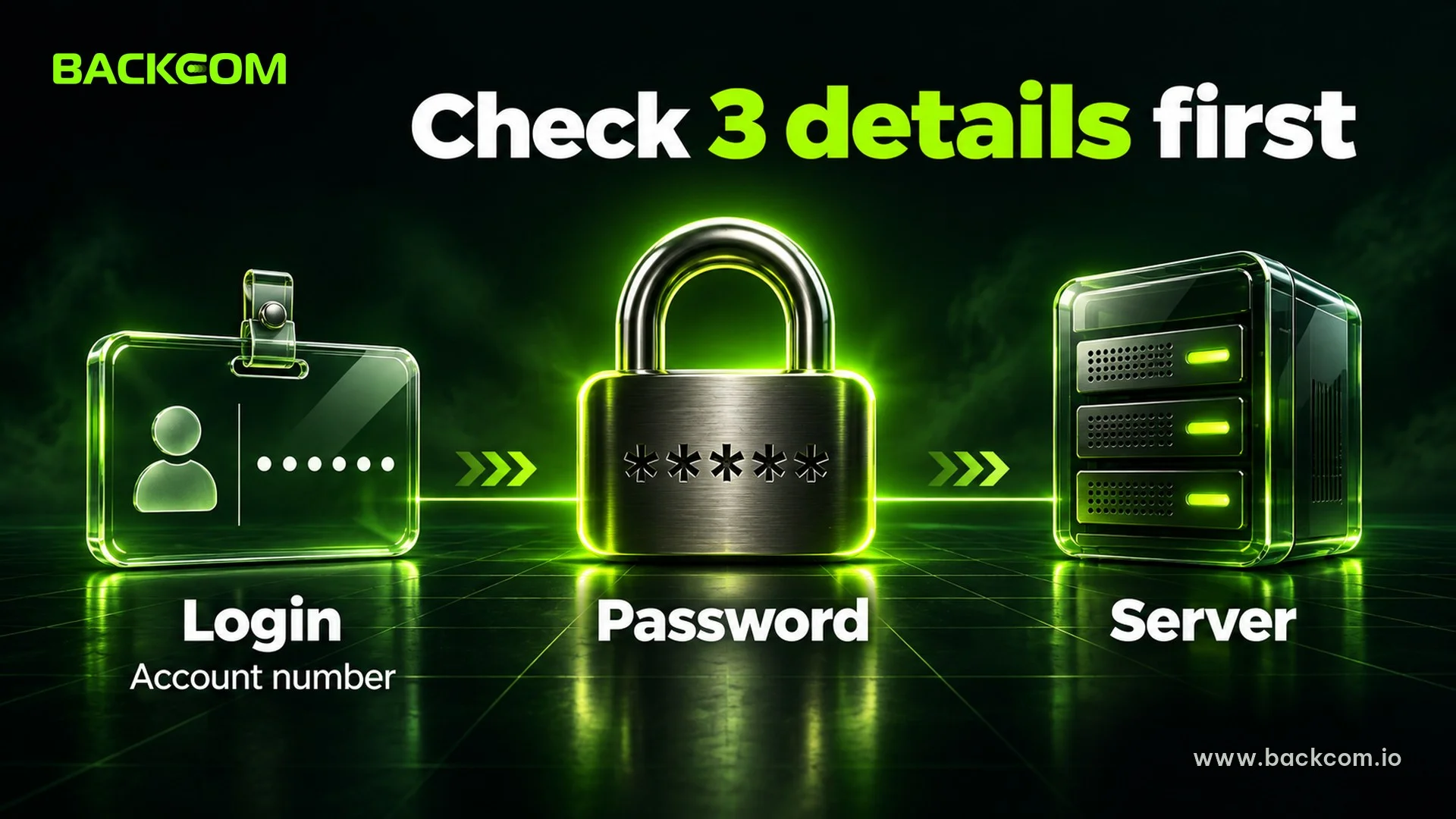
Logging in to MT5 on a phone needs exactly three details: the account number (Login), the password and the server. If any one of them is wrong, the app refuses the connection, so check each one instead of guessing the cause.
MetaQuotes, the company behind MT5, describes the same process for both Android and iPhone: open the account screen, pick your broker's server, enter your existing account details and tap to sign in. You can read the official steps in the guide to connecting to an account on MT5 for Android and the iPhone version.
The three required fields mean the following:
- Login: the trading account number, a string of digits and not an email address.
- Password: the master password for trading, or the investor password for viewing only.
- Server: the name of the server where the account was opened, usually sent in the broker's confirmation email.
Some accounts use extended authentication. In that case you also need a certificate installed on the device, because a login and password alone are not enough.
Forex Login Not Working On Phone: Read The Error Message First
The message tells you whether the problem is in the details or in the connection. Match what you see against the table below before trying any fix.
| Message or symptom | Usually caused by | See section |
|---|---|---|
| Invalid account or Authorization failed | Wrong account number, password or server | 2, 3, 6 |
| No connection | Unstable network or the wrong server | 3, 8 |
| Broker name missing from the list | Not enough characters typed, or the wrong name | 4 |
| You log in but cannot place orders | You are using the investor password | 5 |
| Details are correct but still refused | MT4 and MT5 mixed up, or a password the broker forced you to change | 6, 7 |
This table is a general guide as at 18 November 2026. Each broker can word its messages differently, so compare it with what your own broker actually shows.
2. MT5 Invalid Account Error: Using Your Client Portal Details By Mistake
The MT5 invalid account error appears most often when a trader types the client portal email and password into the trading app. The two systems are separate: the portal manages your profile, deposits and withdrawals, while MT5 is where orders are placed.
OANDA makes the same point in its guide to MT5 login errors on Android from OANDA Japan (in Japanese): client portal credentials do not work in MT5, because MT5 needs a numeric ID with its own password. The rule is almost identical at other brokers.
Check these items in order:
- Find the account confirmation email: it normally lists the MT5 account number, the server and sometimes the starting password.
- Enter digits, not an email: the Login field accepts only the account number, with no spaces.
- Retype the password by hand: a password pasted from a note often carries a space at the start or end.
- Watch upper and lower case: a Caps Lock that is switched on is enough to cause the error.
Traders with several accounts in one portal slip up even more easily, because each account has its own number and its own password. Entering one account number with another account's password triggers the same invalid account message.
3. MT5 Wrong Server Mobile Errors: Live Vs Demo And Look-Alike Names

A wrong server on MT5 mobile is the second most common cause, because server names look almost identical. One broker can run several servers for live and demo accounts, or for different account types, and a different number at the end of the name means a different server.
When the wrong one is selected, the app often returns invalid account or no connection even though the number and password are correct. The quickest way to check:
- Take the server name from the broker: the confirmation email or the client portal, never from memory.
- Compare every character: the broker name, the account type and the digits at the end.
- Separate live from demo: a demo account cannot log in through a live server, and the reverse is also true.
For accounts at four widely used brokers, there are step-by-step guides: Exness, Vantage, HFM and XM.
4. Server Missing From The MT5 Server List
A missing server does not usually mean the broker has gone offline. According to MetaQuotes, the MT5 server list does not show every server by default, so you need to type the broker's name into the search bar, and results appear only after at least three characters.
Try these steps:
- Type at least three letters of the broker's name.
- Pick the right broker entity: then choose the server that matches your email.
- Try another name: some brokers register under a legal name that differs from the brand you know.
- Ask the broker for the exact server name: MetaQuotes advises doing this if you do not know it.
If the list stays empty even with the right name, switch between Wi-Fi and mobile data to rule out a network problem. Do not install extra apps just to make a server appear, because the safe route is the original MT5 app from the official store plus the details your broker sent.
5. Investor Password Lets You In But You Cannot Place Orders

The investor password only allows viewing, never trading. This confuses many traders because the app reports a successful login, yet the order button does nothing or shows a permissions error.
MetaQuotes separates the two types: the master password gives full platform functionality, while the investor password lets you see account status and analyse prices but not trade. The details are on the MT5 page about logging in to a trading account.
You can tell which type you are using from these signs:
- You can see the balance and open positions: but you cannot close or modify them.
- Orders are rejected: with a message about permissions or disabled trading.
The fix is to log in again with the master (trading) password. If you no longer remember it, reset it in your client portal as described in section 7.
6. Mixing Up MT4 And MT5 When You Log In On A Phone
Mixing up MT4 and MT5 is a simple but very common mistake, because the two app icons look alike. An MT5 account will not log in through the MT4 app, and the reverse, even when the number, password and server are all correct.
OANDA flags the same trap: the icons are easy to confuse, and MT4 will not accept MT5 credentials. The article on the differences between MT4 and MT5 explains why the two platforms do not share accounts.
You can confirm the platform of your account in three ways:
- Read the confirmation email: it usually states the platform and the server name.
- Check the client portal: the account list normally shows the platform type.
- Open the right app: MetaTrader 4 and MetaTrader 5 are separate apps in the store.
7. Forgot MT5 Password Or Forced Password Change: How To Recover Access
If you forgot your MT5 password, you can recover it without opening a new account. The trading password lives on the broker's side, so you reset it in the client portal and not inside the app.
The usual process at most brokers is:
- Log in to the client portal: with the email and password of the portal itself.
- Find the right trading account: select it from the account list.
- Choose change or reset trading password: and enter a new one that meets the requirements shown.
- Log in to MT5 again: typing the new password by hand to avoid paste errors.
MT5 also shows a "Forgot your password?" link under the connection form. According to MetaQuotes, it only opens the broker's contact details and does not send a new password.
Two situations can make an old password stop working even though you did not change it:
- The broker forces a change: MetaQuotes says changes can be periodic or required at first login, and when the master password is force-changed, the old investor password becomes invalid and must be set again.
- The new password does not qualify: it must contain four character types and differ from the current one.
For Vantage accounts, the guide to changing the Vantage trading password follows that broker's own screens step by step.
8. No Connection Even When The Details Are Correct: Check Network And App
No connection means the app cannot keep contact with the trading server, so the cause may be the network, the selected server or the app itself. Once the number and password are checked, work through the layers one at a time.
Try the following and stop when the error disappears:
- Change network: switch between Wi-Fi and mobile data, then log in again.
- Close the app completely: swipe MT5 away, reopen it and reconnect, instead of only leaving to the home screen.
- Update the app: a version that is too old may stop working with the server.
- Restart the phone: simple, but it clears many stuck connections.
If the error shows up only on one network, you may be dealing with a block at network level rather than a login problem. Keep those two cases apart and read the guide to accessing broker sites with the 1.1.1.1 app rather than trying unknown tools.
9. When To Contact Broker Support And What To Send

Contacting broker support is the sensible step once you have worked through the seven errors above and still cannot log in. Some causes are visible only to the broker, such as the account status or the condition of its trading server.
Support responds faster when you send everything in the first message:
- Account number: only the number and the verification details support asks for.
- The server you selected: copied exactly as shown in the app.
- The error message: a screenshot showing the full text.
- Device and network: iPhone or Android, Wi-Fi or mobile data.
- When it started: date, time and the last thing you did.
Never send your trading password or an OTP code to anyone in a message. Genuine support does not need them to check an account.
If you registered through a partner link, you can also reach the referral partner's support team through the contact page on WhatsApp or Telegram, who can point you to the right broker department. That channel has no access to your trading account.
When you are in a hurry to log in, it is easy to be pushed toward a fake login page. A good rule is to enter your password only in the original MT5 app or on the page named in your broker's confirmation email.
Frequently Asked Questions (FAQ) About Forex Broker App Login Problems
What Does Invalid Account Mean In MT5?
It means the broker rejected the login details, usually because of a wrong account number, password or server. Retype all three by hand from the confirmation email, check live versus demo, and reset the password in the client portal if the error continues.
I Can Log In To MT5 But Cannot Place Orders. What Is Wrong?
The most common cause is the investor password, which only allows viewing. Log in again with the master password. If orders are still refused, ask the broker whether trading on the account is restricted.
Can One Account Be Used On Both MT4 And MT5?
No. An account opened on MT4 logs in only on MT4, and an MT5 account only on MT5. To use the other platform, open a new account with the broker.
Is It Safe To Save My Password In MT5?
Saving it lets you log in automatically next time, but the password then sits on your phone. Turn on the screen lock and never save it on a shared device. To let someone view results, share the investor password and keep the master password to yourself.
Conclusion: Fix Forex Broker App Login Problems In The Right Order
To fix forex broker app login problems, go from the cheapest check to the most time-consuming one: verify the account number and password, compare the server name, tell master from investor, confirm MT4 or MT5, and only then move to the network and support. Traders should weigh three things together: whether the details are correct, whether the server matches the account type, and whether the connection is stable.
If you are looking for brokers with clear account information and easy support, you can browse the list of brokers and rebate terms, for example the Exness account terms. Backcom.io is an independent introducing broker (IB/affiliate) of these brokers; rebates are paid from the commission the broker pays Backcom.io, as explained in the risk disclaimer.
Disclaimer: This content is compiled by Backcom.io for information only and is not investment advice, a trading recommendation or legal advice. Forex trading carries a high level of risk and you can lose all of your capital. App screens and broker rules can change, so check the official information of the broker you use.
Was this article helpful?
Join The Backcom.io Community
Get the latest on trading rebates, trading tips, and broker deals — and connect with thousands of traders worldwide.

Backcom App
Track Your Rebates Every Day
Every rebate is visible by broker and by day. Manage your wallet and withdrawals in one place.
Open Backcom App