Exness Account Opening Error: Network, Verification And How To Fix It Through Official Channels

A trader fills in an email and password, taps continue, and the screen freezes. Or the confirmation code never reaches the inbox. Or the documents come back rejected. These are the typical forms of an Exness account opening error, and each one sits on a different screen, so each needs a different fix. Fixing the wrong step only wastes time, and repeated sign-up attempts can hit the limit on how many codes the system will send.
This article does not repeat every registration step. In this article, Backcom.io helps traders:
- Pinpoint which screen is failing, then fix that exact step.
- Tell a network error when opening an Exness account apart from email code, SMS and document problems.
- Know when to open a support request, using only the broker's official channels.
1. Exness Account Opening Error: Which Step Is Failing?
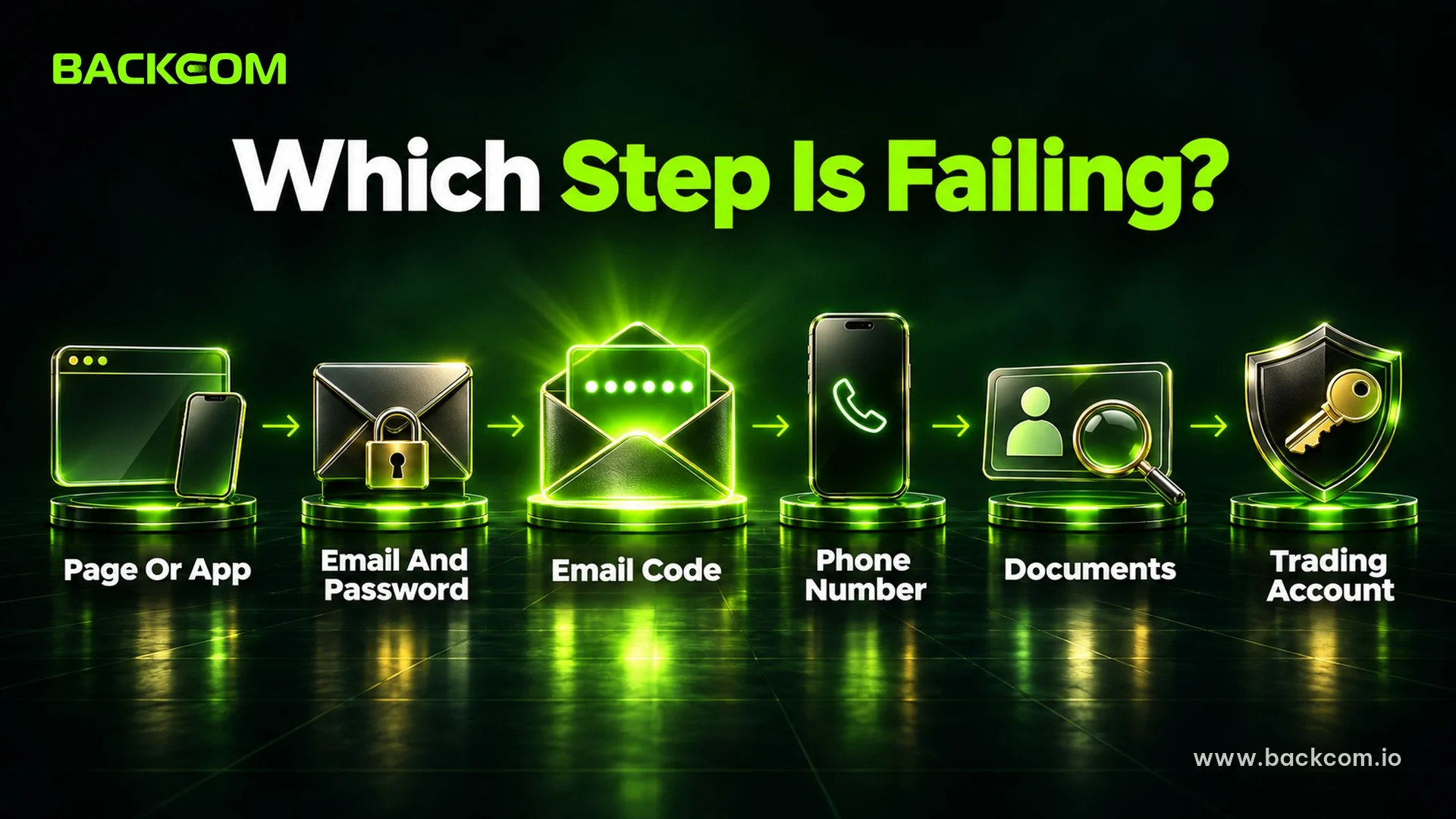
An Exness account opening error is any problem that stops a trader from finishing the sign-up chain, from the first email screen to the first trading account. When you see an Exness registration error, find the stuck stage first, because each stage has its own familiar group of errors.
| Sign-Up Stage | Typical Sign | See Section |
|---|---|---|
| Opening the page or app | The page keeps loading, the app reports a connection error | 2, 5 |
| Email and password | Email already registered, partner code clears itself | 3, 7 |
| Email confirmation code | A long wait and no message | 3 |
| Phone number | No SMS or phone call | 4 |
| Profile and documents | Rejected, uploads not accepted | 6 |
| Trading account | Account exists but MT5 says trading is not possible | 7 |
This table follows the guide to opening an Exness account, checked against the Exness Help Center on 16 October 2026. Screens and limits can change, so check the broker's official channels again before acting.
One rule works throughout: go one step at a time, and move on only when the current step reports success. Take a screenshot of the error with the time it happened, because the original wording helps support far more than a description.
2. Exness Registration Error From Your Network: Check In This Order
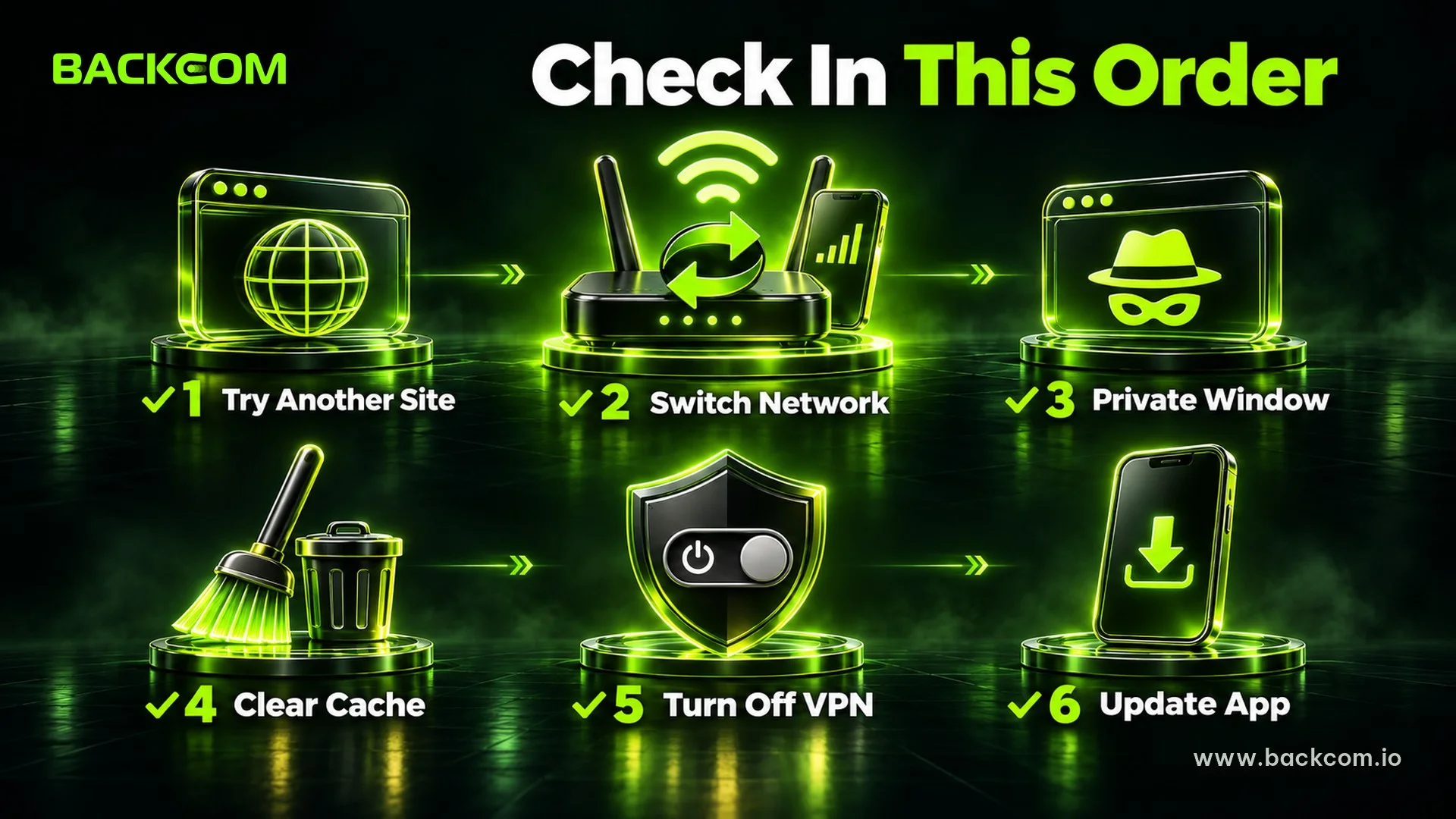
A network error when opening an Exness account means the sign-up page does not load, keeps spinning, or the app reports a lost connection as soon as you tap continue. Rule out the closest causes first, meaning your home network and browser, before suspecting the route to the broker.
Suggested order of checks:
- Open another website, such as a news page. If other pages are slow or fail too, the problem is on your own network.
- Switch networks. Move from Wi-Fi to mobile data, or the reverse, and try again.
- Open the sign-up page in a private window to rule out old data and browser extensions.
- Clear the cache and cookies, or try a different browser.
- Turn off any VPN or proxy, since these tools can break verification pages.
- Update the Exness Trade app if you are registering on a phone.
Based on the Exness Help Center (checked 10 November 2026), three signs suggest the problem may sit on the route to the broker. Only Exness addresses fail to open. The error repeats across several browsers and devices on the same network. The details are correct, the app is up to date and there is no maintenance notice.
If all three signs appear, read the guide to a forex broker website blocked on a phone and stay with official channels. This guide does not teach step-by-step ways around a block, because results depend on the network and traders can end up typing details into a fake page. An error that appears only after you tap submit usually means the data entered was not valid, not that the connection failed.
3. Cannot Create Exness Account: Email Already Registered Or No Confirmation Code
When you cannot create an Exness account at the very first screen, there are usually only two reasons: the email address has been used before, or the confirmation code sent to the inbox never arrives. Both can be fixed without contacting support straight away.
Email Already Registered
The registration guide above tells traders to recover the old Personal Area password or use a different email. Check two easy-to-miss points as well:
- Extra spaces at the start or end of the address, which appear when pasting from elsewhere.
- An earlier Google sign-in, because that email may already be tied to an existing account.
If you already have an account, the sensible route is to log in and add a trading account in the Personal Area, instead of creating a new profile.
No Confirmation Code In The Email
The confirmation code has 6 digits and goes to the inbox you just registered. If you have waited a long time and nothing has arrived, work through this order:
- Check the Spam folder or the Promotions tab.
- Tap resend once, then wait instead of tapping repeatedly.
- Clear the cache or switch browser if the resend button does not respond.
- Wait about one hour before opening a request in the Support Hub if there is still no message.
Traders who register with Google may not need to enter a code at this step. The guide to a broker verification code not received sets out 6 steps for checking an email code, plus separate checks for SMS and authenticator apps.
4. Exness Sign Up Not Working: No SMS When Adding A Phone Number
When Exness sign up is not working at the phone step, check the code delivery limits first. The phone step appears in the Personal Area or inside the app. Traders receive a 6-digit code by text message or phone call, and the system caps the number of attempts to prevent abuse.
| Limit | Details |
|---|---|
| SMS per day | A daily cap applies, and traders must wait once it is reached |
| New phone numbers per day | Maximum of 5 numbers |
Limits referenced as at 16 October 2026. Exness may change them, so check again before trying several numbers.
For that reason, do not keep switching from one number to another to find one that receives a code. A better approach:
- Check the country code and make sure there is no extra leading zero.
- Choose a phone call if the SMS does not arrive, where the system allows it.
- Check signal strength and any filter that blocks messages from unknown senders.
- Wait for the daily limit to reset, then try again if you pressed send many times.
If there is still no code after these steps, open a Support Hub request and state the numbers tried and the sending times.
5. Account Opening Errors On The Exness Trade Mobile App
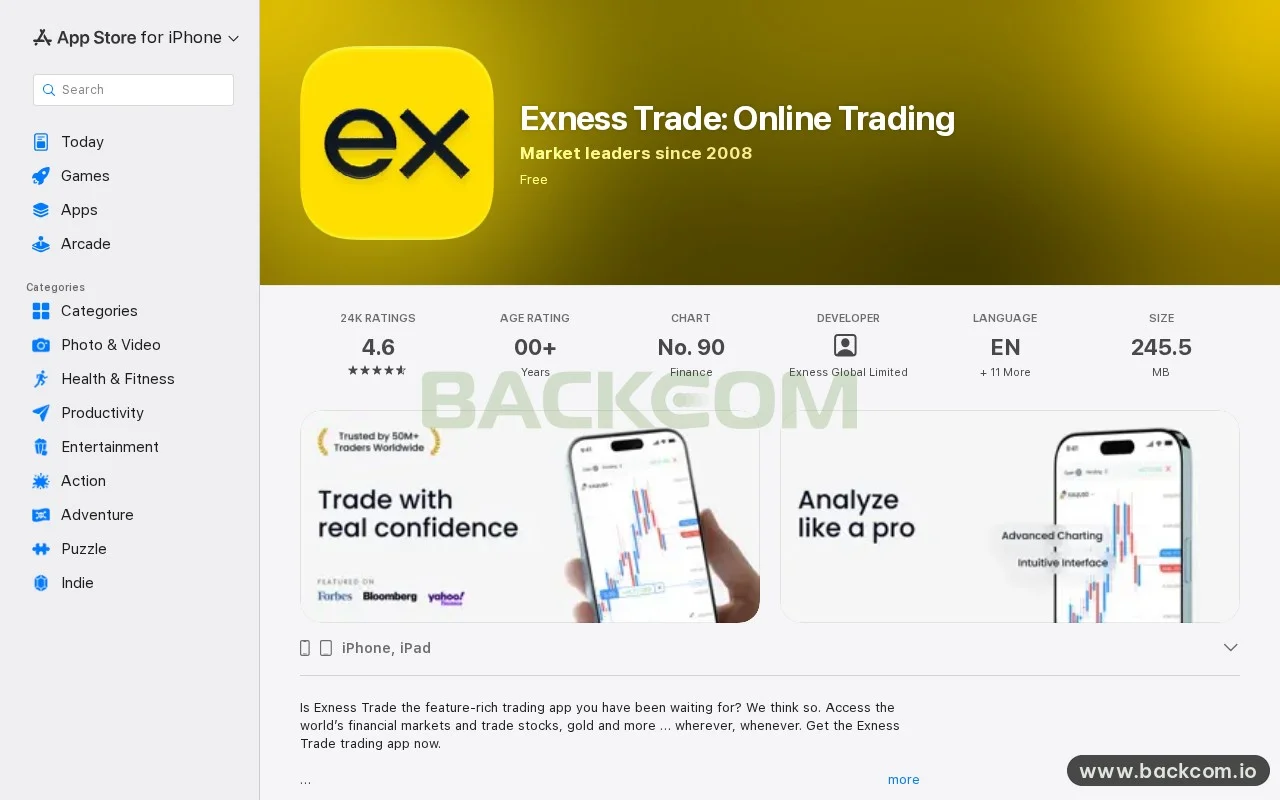
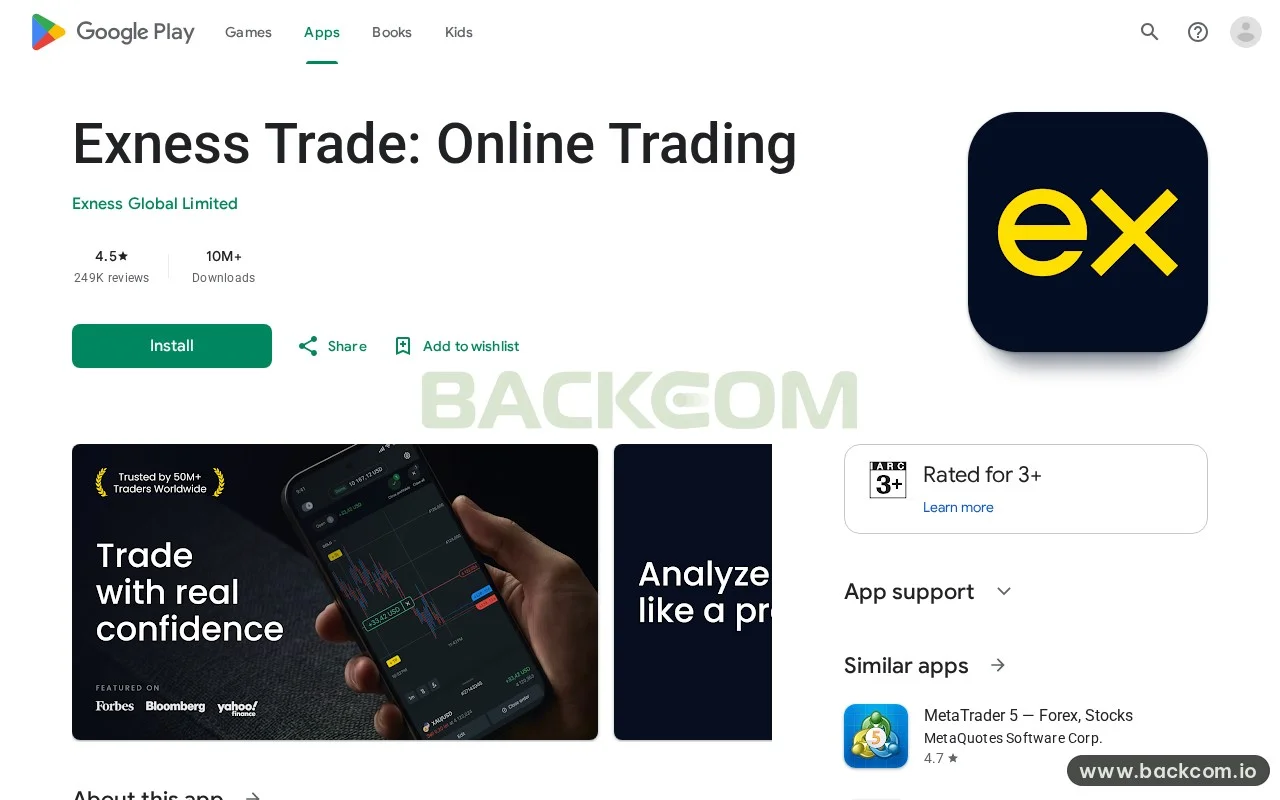
An Exness account opening error on a phone often comes from an old app version, an unofficial download or an unstable mobile connection. Download the app from an official store and check the operating system first. iPhone needs iOS 16.0 or later, and the two official store pages are:
- Exness Trade on the App Store for iPhone.
- Exness Trade on Google Play for Android.
When the app fails halfway through, try this order:
- Update the app to the latest version, then reopen it.
- Close the app completely and open it again, instead of only minimizing it.
- Switch networks between Wi-Fi and mobile data.
- Uninstall and reinstall if the app keeps stopping at the same screen.
- Use the phone's browser to finish registration if the app still fails.
The order of screens in the app can differ by version. Traders choose a country, enter an email and password, confirm they are not a US citizen or resident, enter the 6-digit code from the inbox, then add a phone number. The country of residence must be right from the start, because it cannot be changed later and it decides which deposit and withdrawal methods are available.
6. Exness Verification Error: Why Documents Are Rejected And How To Resubmit
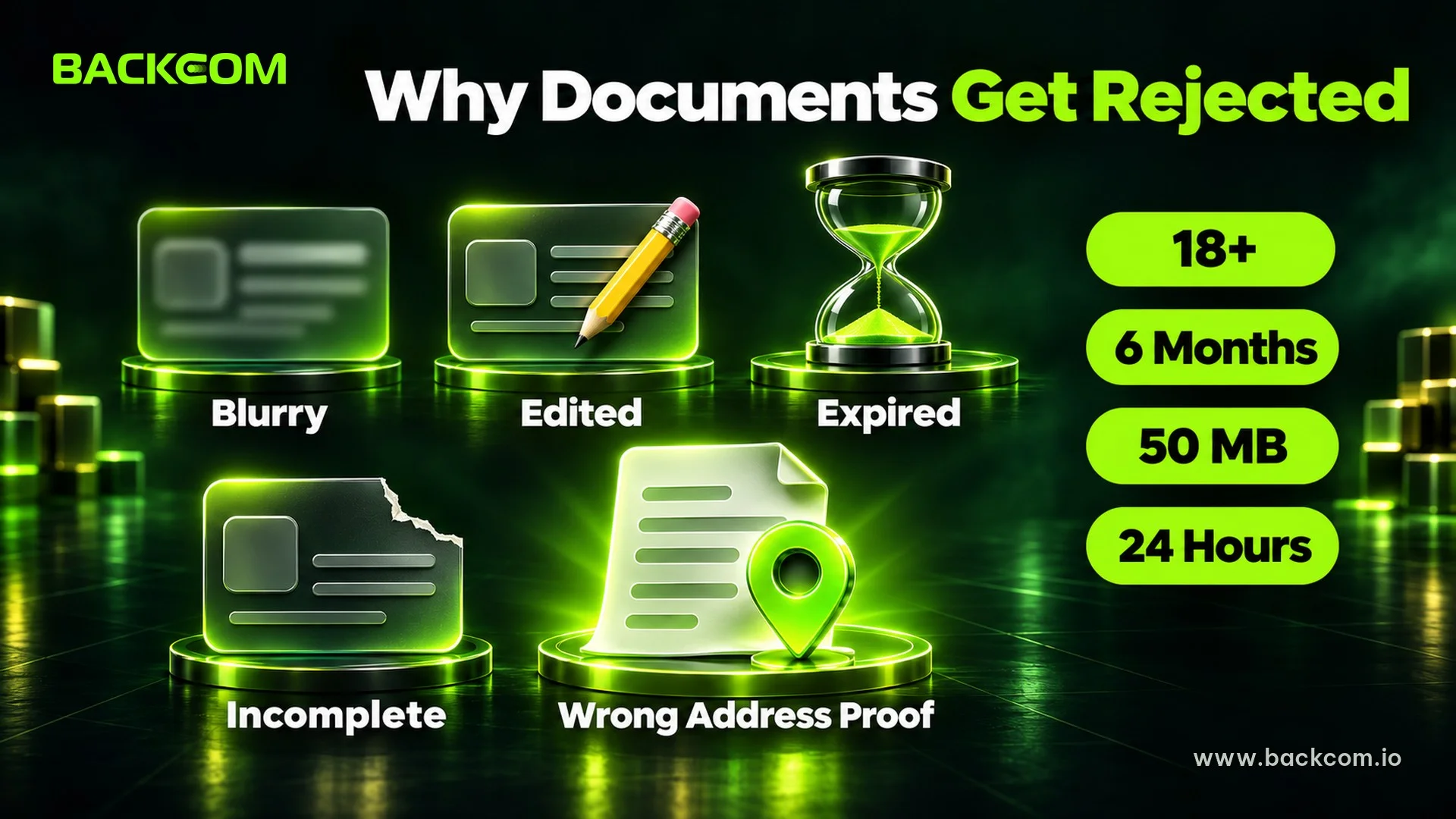
An Exness verification error is the problem traders meet after the account exists, when uploading identity or address documents. The reason normally appears in an email or in the Rejection reason section, so read it before resubmitting. Common reasons include:
- Blurry photos or glare that make the text unreadable.
- Edited photos or documents cropped so that part is missing.
- Expired documents.
- Incomplete images, such as a missing back side or a cut corner.
- A proof-of-address document of the wrong type or one that does not meet the conditions.
A few conditions to keep in mind when preparing documents:
| Item | Condition |
|---|---|
| Account holder age | 18 or older |
| Proof of address | Issued within 6 months |
| File format | JPEG, BMP, PNG or PDF, up to 50 MB |
| Review time | Up to 24 hours |
| Order | Economic profile first, then documents |
Document conditions referenced as at 16 October 2026. Exness may change them, so check again before submitting.
The address entered in the profile must match the proof of address. After 10 failed uploads, contact support instead of continuing to retry. If you are still choosing which account to open, read the guide to Exness account types before adding another one.
7. Errors After Opening: Trading Is Disabled, Partner Code And The 30-Day Deadline
Trading is disabled is a message traders can see in MT5 when a new account exists but has not yet received its first deposit. This is usually not a serious fault. The deadline for full verification follows a simple formula:
Full verification deadline = Date of first deposit + 30 days
After the deadline, the account is locked and only withdrawals remain. Traders should therefore finish the documents early, instead of waiting until the last days and discovering a rejection.
The partner code field is optional at sign-up, and the field clears itself when the code is not valid. Check how you typed it and use the code currently shown: backcomio. A trader who already has an account and wants rebates needs to transfer partners, which is a different action from opening a new account. The guide to transferring an Exness IB partner describes the steps, and current rebate conditions are on the Exness rebate page. A trader without an account can open an Exness account through the referral link.
Backcom.io is an independent introducing broker (IB/affiliate) of Exness; rebates are paid from the commission the broker pays Backcom.io — see the risk disclaimer.
If MT5 says it cannot connect once the account exists, read the guide to MT5 no connection and invalid account errors.
8. When To Contact Support And How To Spot Fake Channels
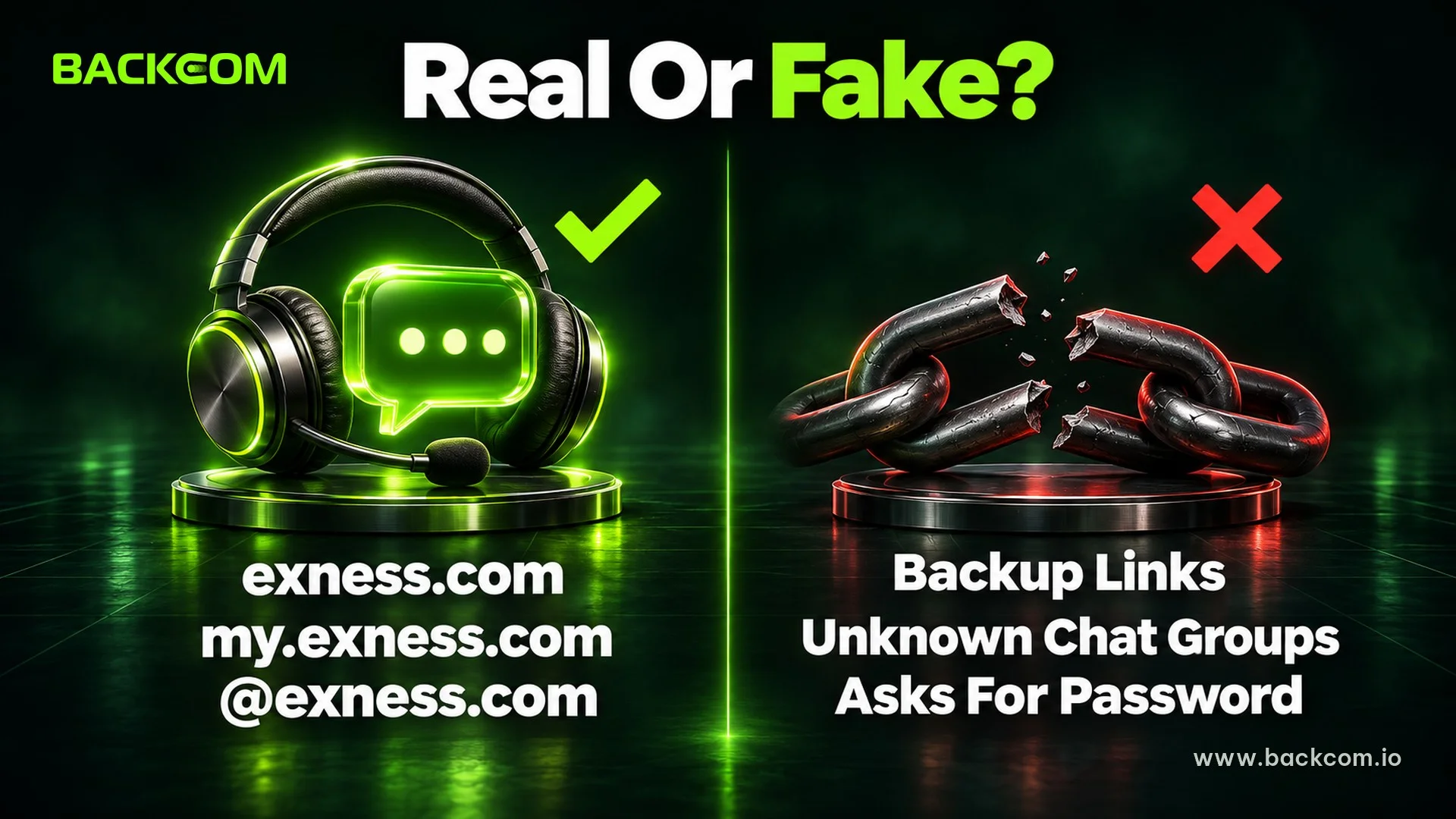
The official support channel of Exness is the only place where traders should send codes, document photos or error descriptions. When registration fails, many people are lured to outside "support", and this is a common way to harvest account details.
Open a support request once you have worked through sections 2 to 7 and the error remains. A good request includes:
- A screenshot of the error and the time it happened.
- The email used to register, without the password.
- The steps already tried, so staff do not have to start from the beginning.
Signs of a genuine channel, checked against the Help Center on 10 November 2026:
- Official addresses are exness.com, my.exness.com and get.exness.help.
- Emails from the broker end in @exness.com or @mail.exness.com.
- Exness states that it does not use Telegram, Facebook Messenger, Instagram or TikTok for customer support.
- Support staff never ask for a password; the Support PIN is only used to verify the account holder inside official channels.
Read directly from the source: Exness official communication channels and the account safety guide.
"Quick sign-up" links, "backup links" and unknown files sent through chat groups are all reasons to stop. The guide to signs of a forex broker scam helps with further checks. A trader who typed a password or OTP into an unknown page should change the Personal Area password and the trading password immediately.
Frequently Asked Questions (FAQ) About Exness Account Opening Errors
What Should I Do First When Exness Account Opening Shows A Network Error?
Open another website, switch between Wi-Fi and mobile data, then retry in a private window. Turn off any VPN or proxy and update the Exness Trade app. Only if the error repeats on every device on the same network should you suspect the route to the broker.
What If The Exness Email Confirmation Code Does Not Arrive?
Check the Spam folder, tap resend once, clear the cache or switch browser, then wait about one hour. If there is still no message, open a Support Hub request with the email used and the time the code was sent.
Why Is There No SMS When I Add A Phone Number To Exness?
The system limits SMS per day and allows at most 5 new phone numbers per day. Do not keep changing numbers. Check the country code, try a phone call if available, and wait until the next day if you reached the limit.
Can I Resubmit Documents After An Exness Verification Error?
Yes. Read the reason in the email or in the Rejection reason section, take a clear photo of a valid document, then upload again. After 10 failed uploads, contact official support instead of retrying.
Conclusion: Fix The Right Screen And Use Official Channels
An Exness account opening error rarely needs a complicated fix. You need to look at three things together: which screen fails, what the original message says, and whether the support route is official. Working in order from network to email code, SMS, documents and then the trading account spares traders most unnecessary retries.
Save a screenshot of the error, keep the same registration email and send information only to the broker's official channels. Once the account is open and you are ready to fund it, the guide to Exness deposit and withdrawal times explains processing times by method. If you need to start again, the guide to opening an Exness account covers every step on web and app.
Disclaimer: This content is compiled by Backcom.io for information only and is not investment advice, a trading recommendation or legal advice. Exness screens, limits and conditions can change, so check the broker's official channels before acting. Trading forex and CFDs carries a high level of risk and you can lose all of your capital.
Was this article helpful?
Join The Backcom.io Community
Get the latest on trading rebates, trading tips, and broker deals — and connect with thousands of traders worldwide.

Backcom App
Track Your Rebates Every Day
Every rebate is visible by broker and by day. Manage your wallet and withdrawals in one place.
Open Backcom App