Forex Broker Website Not Loading On Computer: 6 Steps To Tell Maintenance, Network Or Blocking

You open your broker's login page just before a trade, and it spins forever or shows an error you do not recognize. Many traders then jump to the conclusion that the broker is blocked or the account is frozen. In practice, a forex broker website not loading usually falls into one of four groups: the broker is under maintenance, the browser holds stale data, the network is misbehaving, or access is blocked. Each group has its own fix, and trying them in the wrong order only wastes time.
This guide is for traders using a desktop or laptop and applies to any forex broker. In this guide, Backcom.io will help traders:
- Tell the four groups apart with a test that takes a few minutes.
- Know when forex broker maintenance usually happens and where notices appear.
- Clear the browser cache, try a private window and flush the DNS cache correctly.
- Recognize the signs of blocking and use official channels.
1. Forex Broker Site Not Opening On Computer: Is It The Broker, Your Browser Or Your Network?
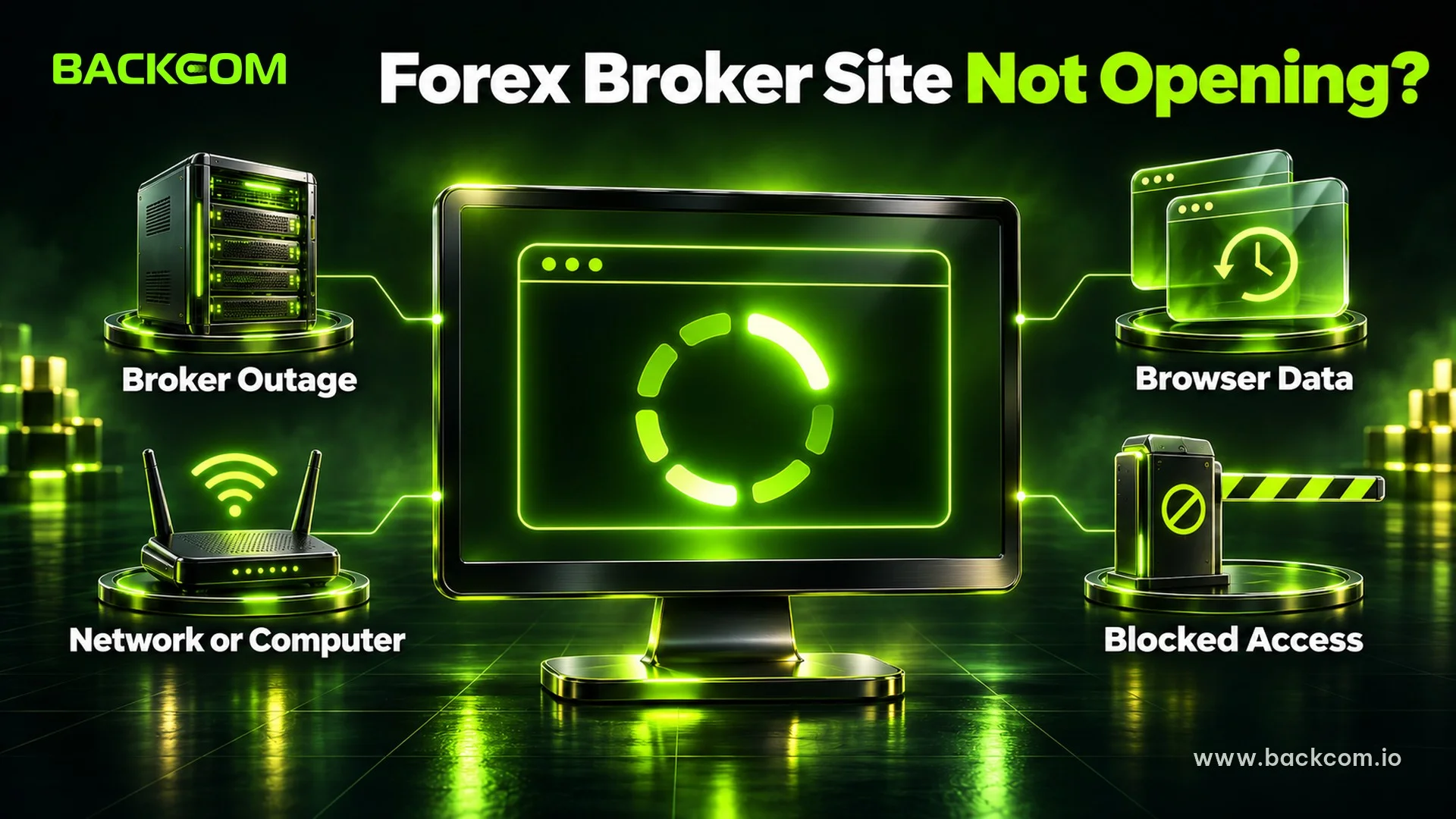
A forex broker site not opening on a computer means the browser cannot load the login page, client area or home page. Traders should split the problem into four groups before changing anything, because each group leaves a different clue.
| Cause group | Typical sign | See section |
|---|---|---|
| Broker maintenance or outage | Other devices and networks fail too; notice in the client area | 2 |
| Browser holds stale data | A private window works, the normal window does not | 3, 4 |
| Network or computer | Many other websites also fail or load slowly | 5 |
| Access is blocked | Only the broker site fails, other sites are fine, another browser fails too | 6 |
This table is a general guide as of November 18, 2026. Each broker lays out its pages and notices differently, so check against the official channels of the broker you use.
A Three-Minute Test To Sort The Cause
Google's guidance on connection errors in Chrome starts with a simple question: does only one site fail, or many? If many sites fail, the cause is most likely your own network. Traders can work through this sequence:
- Open another site, such as a news page or a search engine. If it loads normally, the connection is alive.
- Open the broker site in a private window to rule out stored data and browser extensions.
- Try another device. If another computer on the same Wi-Fi opens the page, the fault sits on the computer in use. If a phone on mobile data opens it but your home network does not, look at your home network in section 5 and at blocking in section 6. If the problem is on your phone instead, see what to do when a forex broker website is blocked on your phone.
- Write down the time and the error text on screen, because it helps when contacting support.
2. Is The Forex Broker Website Down? Forex Broker Maintenance Or Outage
Forex broker maintenance is a period when the broker pauses part or all of its services to upgrade systems. It is a very common reason a page will not load, and there is nothing to fix on your own computer.
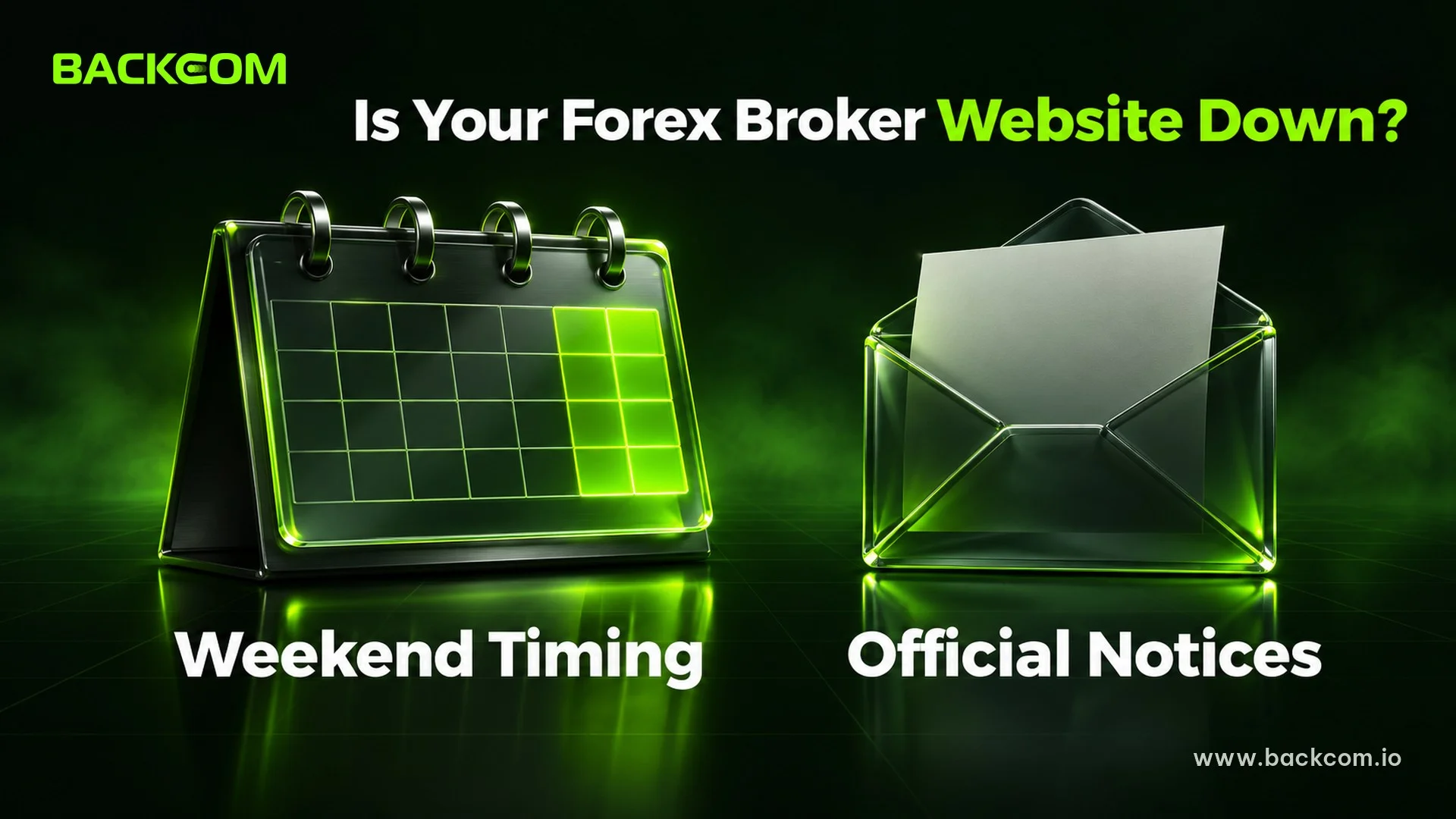
Take Exness as an example. Its page on instrument trading hours describes a recurring weekend maintenance window. As of November 18, 2026, maintenance usually runs on Saturday from 05:00 to 09:00 UTC in winter and from 04:00 to 08:00 UTC in summer, plus 05:00 to 09:00 UTC on Sunday. The broker notes that the window can be extended or shortened depending on the work needed each week. Traders can read the original on the Exness instrument trading hours page.
The same page says the broker posts a notice in the Personal Area before and during the window, and that short interruptions may affect trading, internal transfers, deposits and withdrawals. Other brokers keep their own schedules, so traders should not carry one broker's times over to another.
How To Check Whether A Forex Broker Website Is Down
No single tool gives a perfect answer, but traders can combine these signs:
- Timing: an error on a weekend or just after the market closes points toward maintenance.
- Official notices: an email from the broker, or a notice in the client area or the broker's app.
- Scope: if other devices and networks also fail, the fault is probably on the broker's side.
- Which part fails: if only the client area is down while the trading platform still runs, the broker may be maintaining one part of its system.
If you suspect the broker, the best move is to wait and check again later. Traders with open positions should check them through the broker's mobile app or MT4 and MT5, since those channels can keep working while the website struggles.
3. What Does The Browser Error Message Say About The Cause?
The browser error message is the cheapest clue, and many traders skip it. The small line under the error title often tells you whether the network or the server is at fault.
Google's help page on common error messages in Chrome describes the two codes seen most often when a broker page will not open:
- ERR_NAME_NOT_RESOLVED: the browser cannot turn the site name into a server address. The domain may be mistyped, no longer active or moved.
- ERR_CONNECTION_TIMED_OUT: the page took too long to respond. The connection may be too slow, or the site may be overloaded.
Beyond those, traders may meet a warning that the connection is not secure. In that case, do not click through, because the address may not belong to the broker. Retype the address from an official source, such as the confirmation email sent when you opened the account. One wrong character in the domain is a simple but common cause, especially when opening a page from an old bookmark or a message.
A page that opens but has missing buttons or a broken layout usually points to stale browser data, so move on to the next section.
4. How To Clear Browser Cache For A Forex Broker Site And Try A Private Window
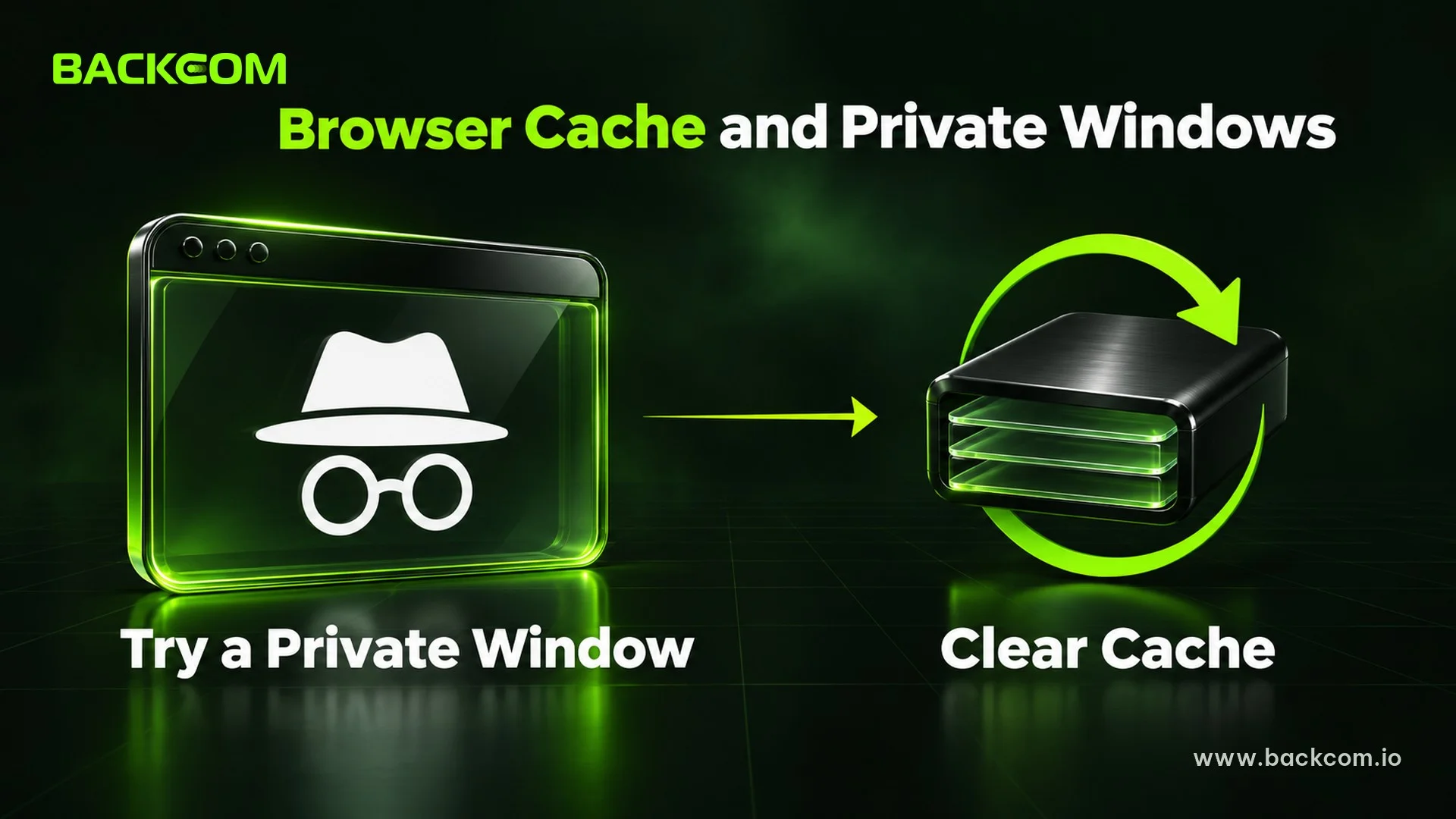
To clear the browser cache for a forex broker site is a step to take early, because it is quick and low-risk. The cache makes pages open faster next time, but when the broker updates its interface, old stored files can clash and stop the page from loading properly.
The Exness help page on Personal Area login issues suggests this same order: clear cache and cookies, then try another browser or a private window with Ctrl + Shift + N. Traders can read the Exness guide to Personal Area login issues. The principle applies to other brokers too.
Try A Private Window First
Try the private window first, because it gives an instant diagnosis. In Chrome, press Ctrl + Shift + N on Windows or Linux and ⌘ + Shift + N on a Mac, as the Chrome Incognito help page explains. The window does not keep cookies or browsing data after it closes, and it does not use the stored data of your normal profile, which makes it a clean test.
The result points the way:
- It loads in the private window: the fault is in stored data or a browser extension. Move on to the clearing steps below.
- It still fails: the fault is not browser data. Go to sections 5 and 6.
Google's help page on clearing cache and cookies lists the desktop steps:
- Open the three-dot menu at the top right and choose the option to delete browsing data.
- Pick a time range, such as the last hour or all time.
- Tick cookies and other site data, plus cached images and files.
- Confirm the deletion, then close the browser fully and reopen it.
Clearing cookies signs you out of many sites, so keep your login details and your way of receiving verification codes ready.
Extensions And Embedded Browsers
Two side causes are worth checking. The first is browser extensions, especially ad blockers, which can break a broker's interface; turn them off and on one at a time to find the culprit. The second is an embedded browser inside another app. Open the page directly in Chrome, Safari or another standard browser instead of tapping a link inside a messaging app.
5. Computer Network Problems: Router, Firewall And The DNS Cache
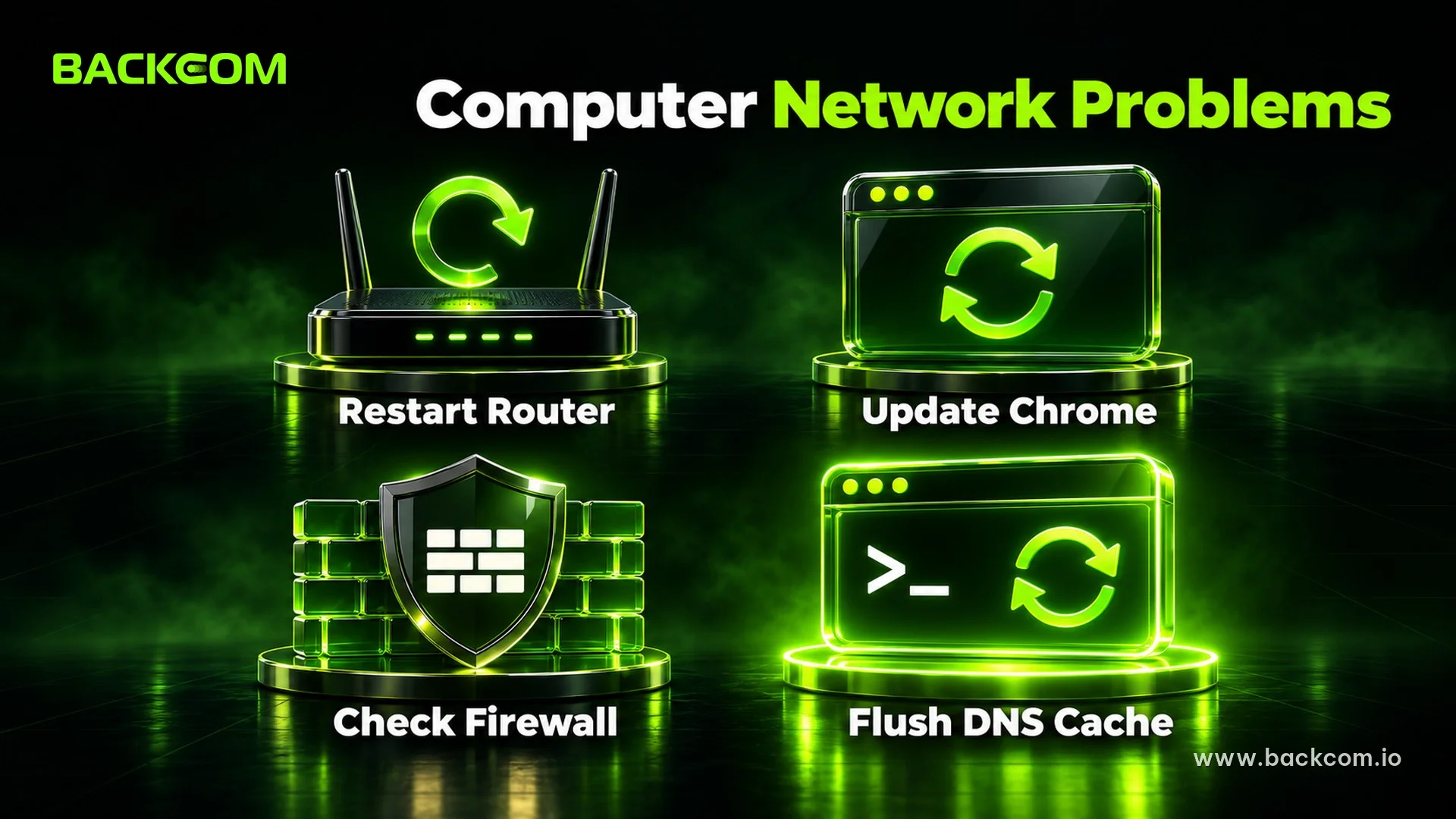
Computer network problems are the next group when a private window does not help. The giveaway is that many other sites are slow or failing, or only some pages will not open.
Google's guide to fixing connection and loading errors in Chrome ranks the steps from easy to hard, and traders should follow the same order:
- Restart the modem and router when many sites fail. It is the simplest fix.
- Update Chrome to the latest version and restart it.
- Check the firewall and antivirus, because they can block the browser. Pause them briefly to test, then turn them back on right away.
- Close extra tabs and programs on a weak machine, because low memory slows pages. On a work computer, ask the network administrator about the configuration in force.
Flush The DNS Cache On Windows
DNS turns a site name into a server address. Your computer caches the result, so when the broker changes an address but the machine still remembers the old one, the page may not open. Microsoft's reference for the ipconfig command describes the fix: ipconfig /flushdns clears and resets the DNS client resolver cache, and it is commonly used when troubleshooting name resolution.
Run it in the Windows command prompt, then reopen the browser. It only refreshes stale data on the machine. It does not change network settings and it does not get around blocking.
6. When Is A Forex Broker Site Blocked, And What Is The Right Channel?
A blocked forex broker site is one that a network provider or local rules prevent from opening on a particular network. The typical sign is that only the broker's pages fail, other sites are fine, switching browsers and clearing data changes nothing, and the broker has posted no maintenance notice.
Traders should rule out the three earlier groups before concluding it is blocked. Once sure, stay with official channels:
- Use the broker's official app, downloaded from an official app store. Exness also suggests the app when the browser keeps failing.
- Contact the broker's support through the client area or an official email, stating the time of the error and the message shown.
- Read the dedicated guide once you know it is a block, for example how to access broker sites with the 1.1.1.1 app.
Do Not Open Strange Links To "Get In"
When a site will not open, traders are tempted by links in chat groups that claim to be the broker's backup link. This is how scammers set up fake login pages to harvest passwords. Use only addresses from the confirmation email, the official website or the broker's app, and be wary of domains that differ by a few characters or messages that rush you to log in. To check further, read the 12 signs of a forex broker scam and how to check a forex broker license.
Traders who registered through an introducing partner can message the Telegram support channel to be pointed to the right broker department. That channel has no access to your trading account and never asks for your password or verification code.
Get Ready Before Trouble Starts
Traders should save the official address from the confirmation email, install the broker's app as a backup, and remember the account number and server so they can sign in to MT4 or MT5 when the website fails, as the guide to logging in to Exness on MT4 and MT5 explains.
Frequently Asked Questions (FAQ) About A Forex Broker Website Not Loading
Does A Forex Broker Website Not Loading Mean My Account Is Frozen?
Usually not. A frozen account shows a specific message after you sign in, while a page that will not load fails earlier, at the browser, network or server level. If the page opens but sign-in reports an error, read the message and contact the broker's support.
What Should I Do With Open Trades During Broker Maintenance?
Check them through the broker's app or MT4 and MT5, and read the notice in the client area. Maintenance length differs by broker and by window, so rely on the official notice rather than one general number.
Does Clearing The Cache Delete My Trading Account Data?
No. Cache and cookies live only in the browser, while the account, balance and positions are stored by the broker. You only lose your signed-in state, so have your login details ready before clearing.
Conclusion: Diagnose A Forex Broker Website Not Loading In The Right Order
To fix a forex broker website not loading, start with the cheapest tests: open another site, try a private window and another device. Then check maintenance, clear the cache, flush the DNS, and only last consider blocking. Traders should look at three things together: whether one site or many fail, whether the broker has posted a maintenance notice, and whether the address being opened is truly the official one.
If you are comparing brokers with clear support channels, see the list of brokers and rebate conditions, for example the Exness account conditions, or the seven criteria for choosing a reputable forex broker. Backcom.io is an independent introducing broker (IB/affiliate) of the brokers it lists; rebates are paid from the commission the broker pays Backcom.io, as explained in the risk disclaimer.
Disclaimer: This content is compiled by Backcom.io for information only and is not investment advice, a trading recommendation or legal advice. Forex trading carries a high level of risk and you can lose all of your capital. Maintenance schedules and screens change by broker, so check them against the official information of the broker you use.
Was this article helpful?
Join The Backcom.io Community
Get the latest on trading rebates, trading tips, and broker deals — and connect with thousands of traders worldwide.

Backcom App
Track Your Rebates Every Day
Every rebate is visible by broker and by day. Manage your wallet and withdrawals in one place.
Open Backcom App