EC Markets Demo Account: How To Open One On MT5 And Limits To Know

Many new traders want to test a broker before depositing, but EC Markets does not put a demo button on its home page. In practice, an EC Markets demo account is created inside the Client Portal after you log in, and it takes a few minutes to get an MT5 account funded with virtual money.
In this article, Backcom.io walks through how to open an EC Markets demo on MT5 using the live interface on 12 November 2026, how the EC Markets demo MT5 login works, which limits are visible on screen and which points could not be verified:
- The two demo types, STD and ECN, with the figures printed on the account cards.
- The steps to create a demo and log in to MT5 with the server shown on the account detail page.
- The question of how long an EC Markets demo lasts, where the official sources are silent.
- How to convert an EC Markets demo to a live account and what to check before depositing.
1. What Is An EC Markets Demo Account And Which Types Are Available?
An EC Markets demo account is a practice trading account that runs on the broker's price feed but uses virtual funds, so profits and losses are not real money. Traders use it to learn the platform, test order entry and try strategies without risking capital.
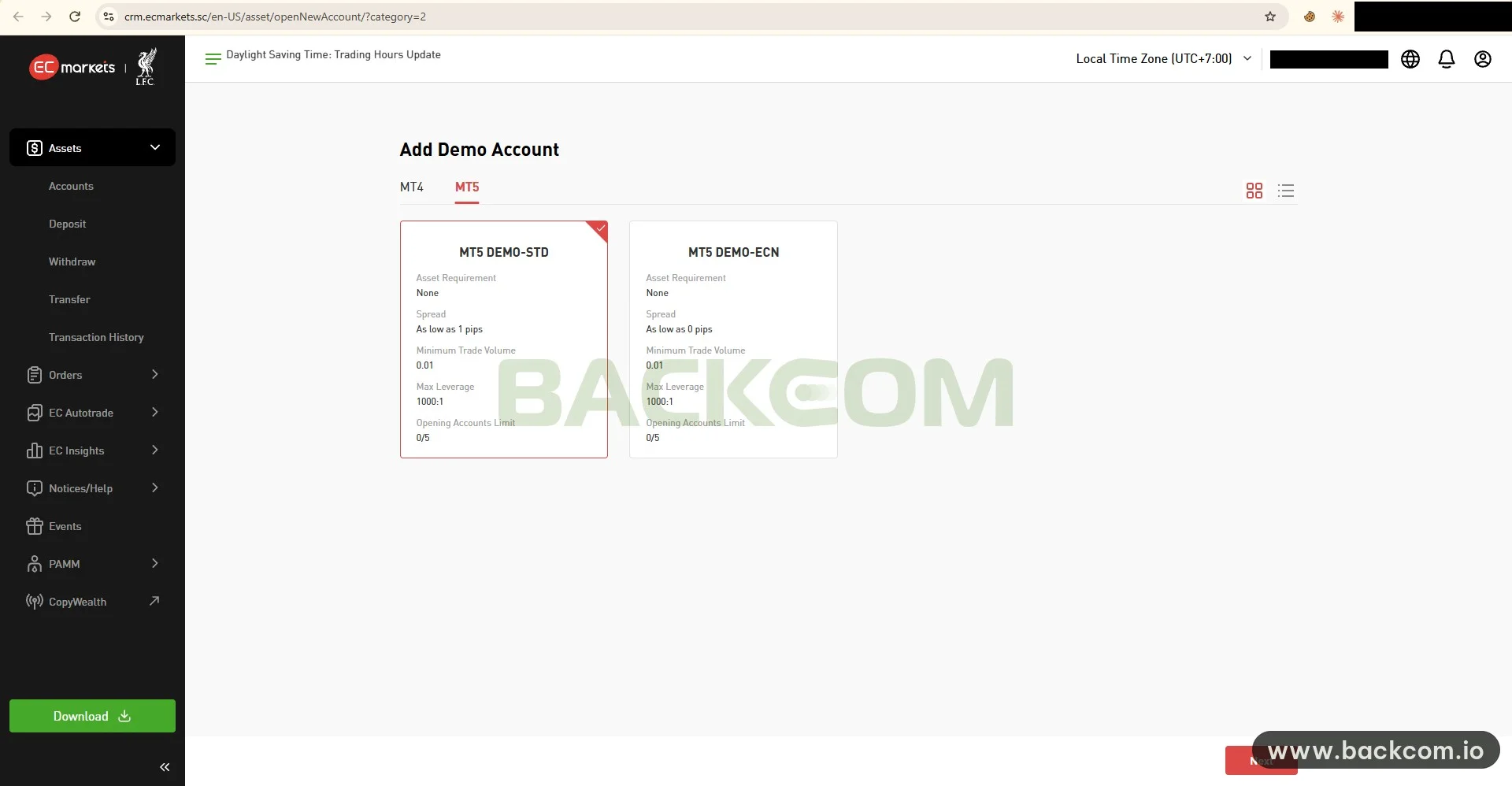
In the Add Demo Account screenshot from the Client Portal (12 November 2026, shown above), the MT5 tab displays two cards: MT5 DEMO-STD and MT5 DEMO-ECN. The MT4 tab sits next to MT5, so you pick the platform first and the account type second. The figures printed on the two cards are:
| Demo Type | Asset Requirement | Spread On Card | Minimum Volume | Maximum Leverage | Account Limit |
|---|---|---|---|---|---|
| MT5 DEMO-STD | None | From 1 pip | 0.01 lot | 1000:1 | 0/5 |
| MT5 DEMO-ECN | None | From 0 pips | 0.01 lot | 1000:1 | 0/5 |
Reference: EC Markets Client Portal interface captured on 12 November 2026. Figures can change, so check again before opening an account.
Two details in the table deserve a careful reading. First, "Opening Accounts Limit" shows 0/5, meaning the captured account had no demo yet and the broker allows up to five. Second, "Asset Requirement: None" means a demo does not require a deposit or a minimum balance.
The STD type matches a live account with a spread from 1.0 pip and no commission, while ECN has a spread from 0.0 pips and normally carries a commission, according to the official EC Markets account types page, checked on 12 November 2026. For the cost side, see EC Markets trading fees by account type.
2. How To Open An EC Markets Demo Account Step By Step In The Client Portal
Opening an EC Markets demo takes four steps in the Client Portal, and you need an existing login for that portal. In the 12 November 2026 screenshot, the demo page sits under Assets in the left menu, and its address ends with openNewAccount and category=2.
The steps are:
- Log in to the Client Portal: use the email and password registered with EC Markets. If you have no account yet, register first, and if you plan to use rebates later, pick the registration link described in section 6 now.
- Go to Assets and open the add-demo page: the page in the screenshot is titled "Add Demo Account" with an MT4 tab and an MT5 tab, while the name of the button leading to it is not in the screenshot.
- Select the MT5 tab and one account card: the selected card has a red border and a tick in the top right corner, and in the screenshot it is MT5 DEMO-STD.
- Click Next at the bottom right: the screens after Next are not in the screenshot, so this article does not describe them, and it could not verify whether you can choose a starting balance there.
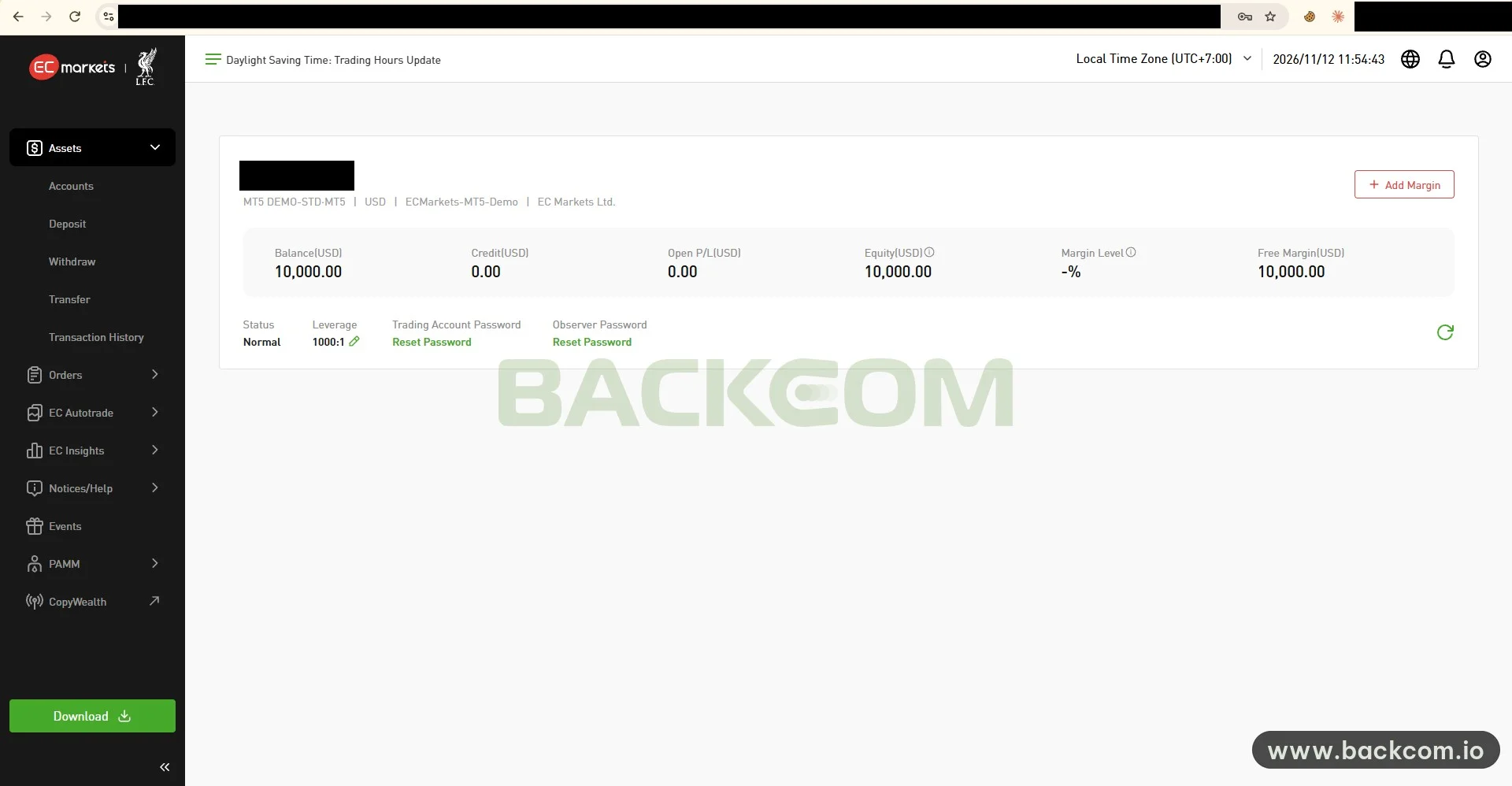
Once created, the account appears in the Accounts list. The second screenshot shows the detail page of a newly created STD demo, and you should compare each line with your own account:
- Type and server: the small line reads MT5 DEMO-STD-MT5, currency USD, server ECMarkets-MT5-Demo, entity EC Markets Ltd.
- Balance: Balance 10,000 USD, Equity 10,000 USD and Free Margin 10,000 USD, with Credit and Open P/L both at zero.
- Status: Normal, leverage 1000:1 with a pencil icon for editing.
- Passwords: two Reset Password links, one for the trading password and one for the observer password.
The MT5 login is the account number, which is masked in the screenshot. Save that number and the password in a safe place as soon as you create the account, because without both you cannot log in to MT5.
The 10,000 USD balance belongs to the captured account and is not a fixed figure for every demo.
3. EC Markets Demo MT5: Which Server To Log In To And What To Check First
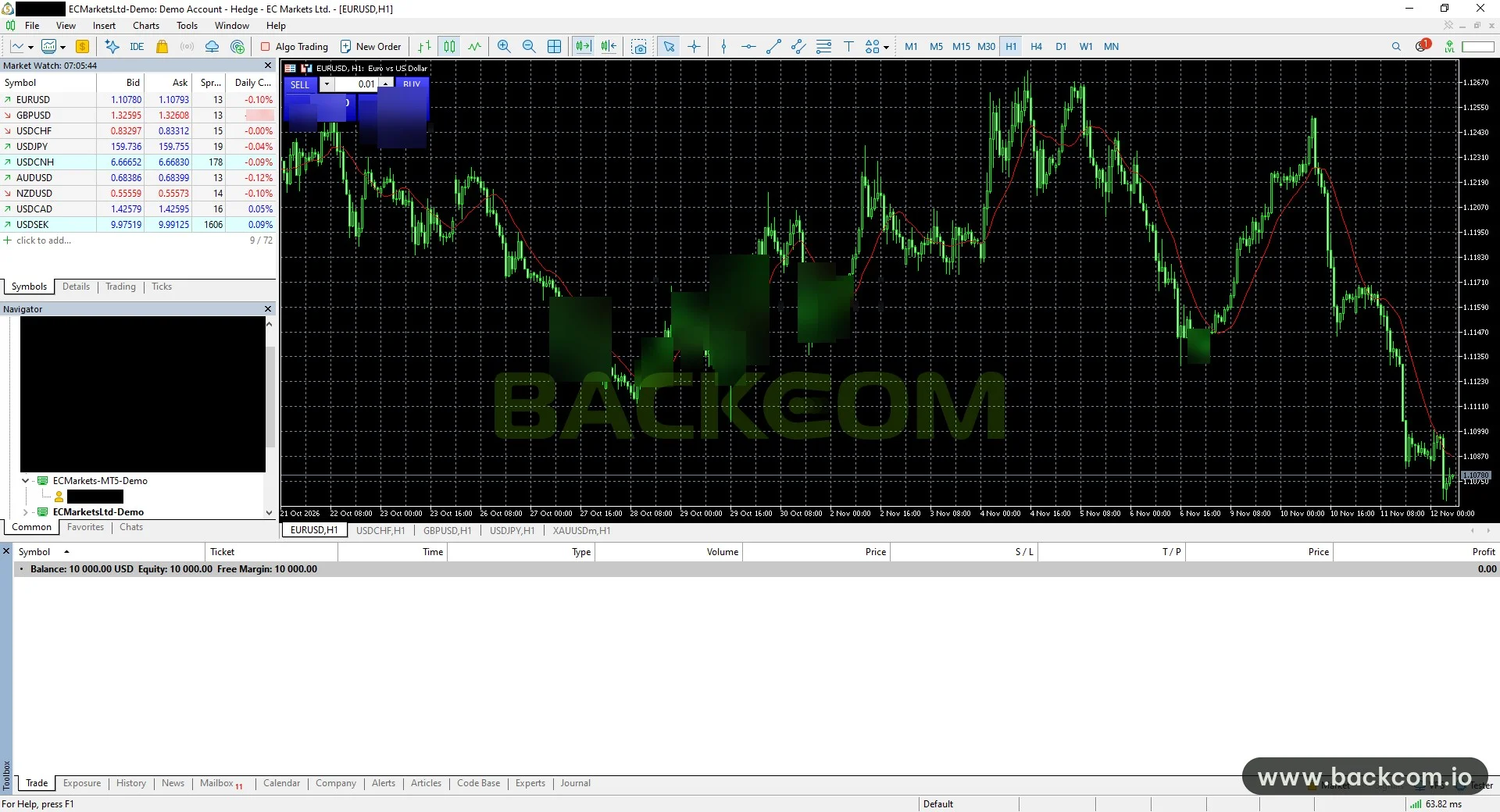
The EC Markets demo MT5 login uses the server shown on the account detail page, which for the STD demo in the screenshot is ECMarkets-MT5-Demo, and you select exactly that name in the MetaTrader 5 login window. See the official EC Markets MetaTrader 5 page and the MetaTrader 5 guide to opening a demo account for reference. If MT5 is new to you, read the differences between MT4 and MT5 first.
The desktop MT5 screenshot from 12 November 2026 shows the demo account already logged in. The title bar reads "ECMarketsLtd-Demo: Demo Account - Hedge - EC Markets Ltd.", the Navigator tree lists two server groups, ECMarkets-MT5-Demo and ECMarketsLtd-Demo, and the Trade tab shows Balance 10 000.00 USD, Equity 10 000.00 and Free Margin 10 000.00. The word Hedge means the account runs in hedging mode, which allows several opposite positions on one pair.
At the first login, check these items in order:
- Server name: use the exact name on the account detail page in the Client Portal, not the server of a live account. The screenshot does not show how the two server groups in Navigator differ, so this article does not say which one belongs to the new account.
- Window title: it should include the words Demo Account, so you do not confuse it with a funded account.
- Market Watch: read the Spread column for each pair, where the unit is points, not pips.
- Symbol name: use the name exactly as it appears in Market Watch when placing orders, rather than typing the name used at another broker.
- Smallest volume: the account card shows 0.01 lot, so start testing at exactly that size.
On spread units, the screenshot shows EURUSD with Bid 1.10780 and Ask 1.10793, a gap of 13 points, equal to 1.3 pips. This is wider than the "from 1 pip" printed on the card because spreads move with market conditions. To convert between points, pips and lots, see what a lot is and how big 1 lot is.
4. How Long Does An EC Markets Demo Last And Which Limits Apply
How long an EC Markets demo lasts is a question this article cannot answer from an official source. The EC Markets MetaTrader 5 page, which opened on 12 November 2026, states no demo expiry, and the address ecmarkets.com/trading/demo-account/ returned a 404 error when tested.
For that reason, no specific number of days is given here. Brokers differ widely. For example, Pepperstone sets out its own demo expiry rule on its help page about demo account duration, but that rule does not apply to EC Markets.
The limits visible directly in the interface are:
- Number of accounts: the Opening Accounts Limit field shows 0/5 for each demo type in the screenshot.
- Minimum volume: 0.01 lot for both STD and ECN.
- Leverage: up to 1000:1, with a pencil icon that allows editing on the detail page.
- Passwords: both the trading password and the observer password can be reset.
The points that could not be verified, and that you should ask the broker's support team about, are:
- Expiry or inactivity limit: no source says whether a demo is locked or deleted after a number of days.
- Refilling virtual funds: it is unclear whether a depleted demo can be topped up or must be replaced by a new account.
- ECN demo commission: it is not clear whether the demo simulates this fee the way a live account does.
The safe approach is not to keep an important strategy in one single demo. Record test results in a separate sheet and log in regularly so the account is not lost unexpectedly.
5. How Does A Demo Account Differ From A Live Account And What Can You Test?
A demo matches a live account in layout and order entry, but differs in everything tied to real money and psychology. Some differences are visible in the interface, and the rest are general knowledge about trading.
| Factor | Demo Account | Live Account |
|---|---|---|
| Funds | Virtual money, 10,000 USD in the screenshot | Deposited real money |
| MT5 server | ECMarkets-MT5-Demo | A separate server for the live account |
| Rebates | No real volume, so nothing to rebate | Calculated on closed volume |
| Psychological pressure | Low | Clearly higher |
Reference: EC Markets interface captured on 12 November 2026 and the EC Markets broker page on this site. Conditions can change, so check again before trading.
Execution costs in a demo can differ from real conditions because there is no real liquidity behind the fills. A steady profit on demo therefore does not prove that a strategy will profit with real money.
A demo is most useful for four jobs:
- Learning platform mechanics: market orders, pending orders, moving a stop loss and partial closes. The full list is in forex order types.
- Practising position size: test the same risk level across many trades and compare it with your money management rules.
- Running EAs and backtests: check that an EA works before it touches a live account, using how to backtest an EA in MT5 and what a forex Expert Advisor is.
- Getting used to margin: watch Margin Level and Free Margin change as you open trades, so you understand margin call and stop out before meeting them with real money.
The 1000:1 leverage on the demo does not mean a live account has the same level. Actual leverage depends on the account type, the legal entity and local regulation, so read it again on the live account. The general mechanics are covered in what leverage in forex is.
6. How To Convert An EC Markets Demo To A Live Account
Converting an EC Markets demo to a live account is not a type switch, because a demo and a live account are two separate accounts. You open a new live account in the Client Portal and then log in to MT5 with the live account's details and server.
The usual process is:
- Finish registration and identity verification (KYC): you need an ID document and may be asked for proof of address.
- Choose a live account of the same type as the demo you tested: STD if you tested STD, ECN if you tested ECN.
- Check the minimum deposit: the official account types page shows the minimum deposit as 10 USD for STD and ECN and 5,000 USD for PRO, checked on 12 November 2026.
- Trade small volume first: begin with 0.01 lot to get used to real slippage and spreads.
If you open a new account and want rebates, you can register through the EC Markets registration link and review the conditions on the EC Markets broker page. That page, checked on 12 November 2026, states that rebates are calculated on closed volume regardless of whether trades win or lose, effective from 1 October 2026. On gold (XAUUSD), the rebate is 18 USD per lot on the No Markup link (normal spread) and 28 USD per lot on Markup 1 (spread +1 pip), while Markup 2 pays 38 USD (spread +2 pips). A higher rebate comes with a wider spread, so compare the total cost per lot before choosing a link.
Backcom.io is an independent introducing broker (IB/affiliate) of EC Markets, and rebates are paid from the commission the broker pays Backcom.io, as set out in the risk disclaimer. Accounts opened directly without a link are not recorded for rebates, so choose the link before registering.
Before depositing real money, also read whether EC Markets is legit to understand the entity and licences.
Frequently Asked Questions (FAQ) About EC Markets Demo Accounts
Is An EC Markets Demo Account Free?
Yes, according to the Client Portal cards on 12 November 2026, the Asset Requirement field of both demo types reads None, so no deposit or minimum balance is required. You only need a Client Portal login. The broker may change this condition, so check the card again when you create the account.
Can You Open An EC Markets Demo On MT4?
You can, since the Add Demo Account page has MT4 and MT5 tabs side by side. The screenshots in this article only open the MT5 tab, so there are no MT4 figures here. If you prefer MT4, click that tab and read the account card before choosing.
Can You Run An EA On An EC Markets Demo?
In principle yes, because MT5 lets you attach an EA to a demo just as on a live account. However, no official source says whether the EC Markets demo restricts EAs. Test at 0.01 lot and watch the results for a few weeks, and treat them as reference rather than proof of profit.
Does An EC Markets Demo Earn Rebates?
No, because a demo has no real trading volume. Rebates are calculated on the closed volume of a live account registered through a partner link or code. You only need to care about the registration link when you move to a live account, and how a demo was opened has no effect.
Conclusion: How To Use An EC Markets Demo Account Well
An EC Markets demo account needs no deposit, takes a few steps in the Client Portal and logs in to MT5 with the demo server shown on the account detail page. Traders should weigh three factors together: the demo type should match the live account type, the demo's lifespan is still unverified, and demo results do not represent real-money results.
The next steps are clear: open a demo of the same type as the live account you plan to use, practise every action from order entry to moving a stop loss, record the results, and only then move to a live account with small volume. If you are starting from zero, EC Markets trading fees by account type is a useful next read before choosing.
Disclaimer: This content is compiled by Backcom.io for information only and is not investment advice, a trading recommendation or tax or legal advice. Trading leveraged CFDs carries a high risk of losing capital, and demo results do not guarantee results on a live account. Account specifications can change, so check the official EC Markets pages before trading.
Was this article helpful?
Join The Backcom.io Community
Get the latest on trading rebates, trading tips, and broker deals — and connect with thousands of traders worldwide.

Backcom App
Track Your Rebates Every Day
Every rebate is visible by broker and by day. Manage your wallet and withdrawals in one place.
Open Backcom App